

Staffing a shift, start to finish
The everyday loop: finding who can do it, asking them, recording the answers, and putting somebody on the job.
This is the job you do most, so it is worth doing once slowly. How Logidex decides who to put in front of you is a separate article; this one is the sequence.
There are two ways in. Use the booking when you are staffing one job, and the Board when you are filling a whole day.
From a booking
- Open the booking and find the Service shifts section.
- An unstaffed shift has a small link on it reading unassigned · match & assign. Click it.
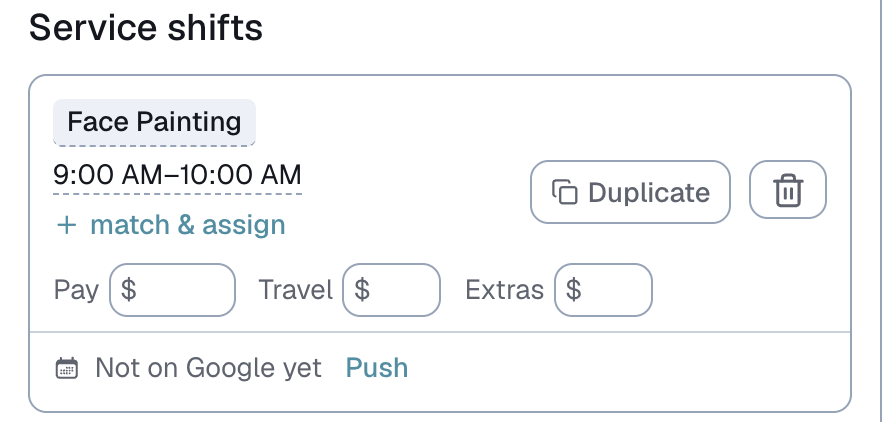
3. The matching panel opens underneath that shift, with Best matches already listed.
- You get Best matches for that service, in order. Each row shows their name, rating, how far away they are and whether they are free.
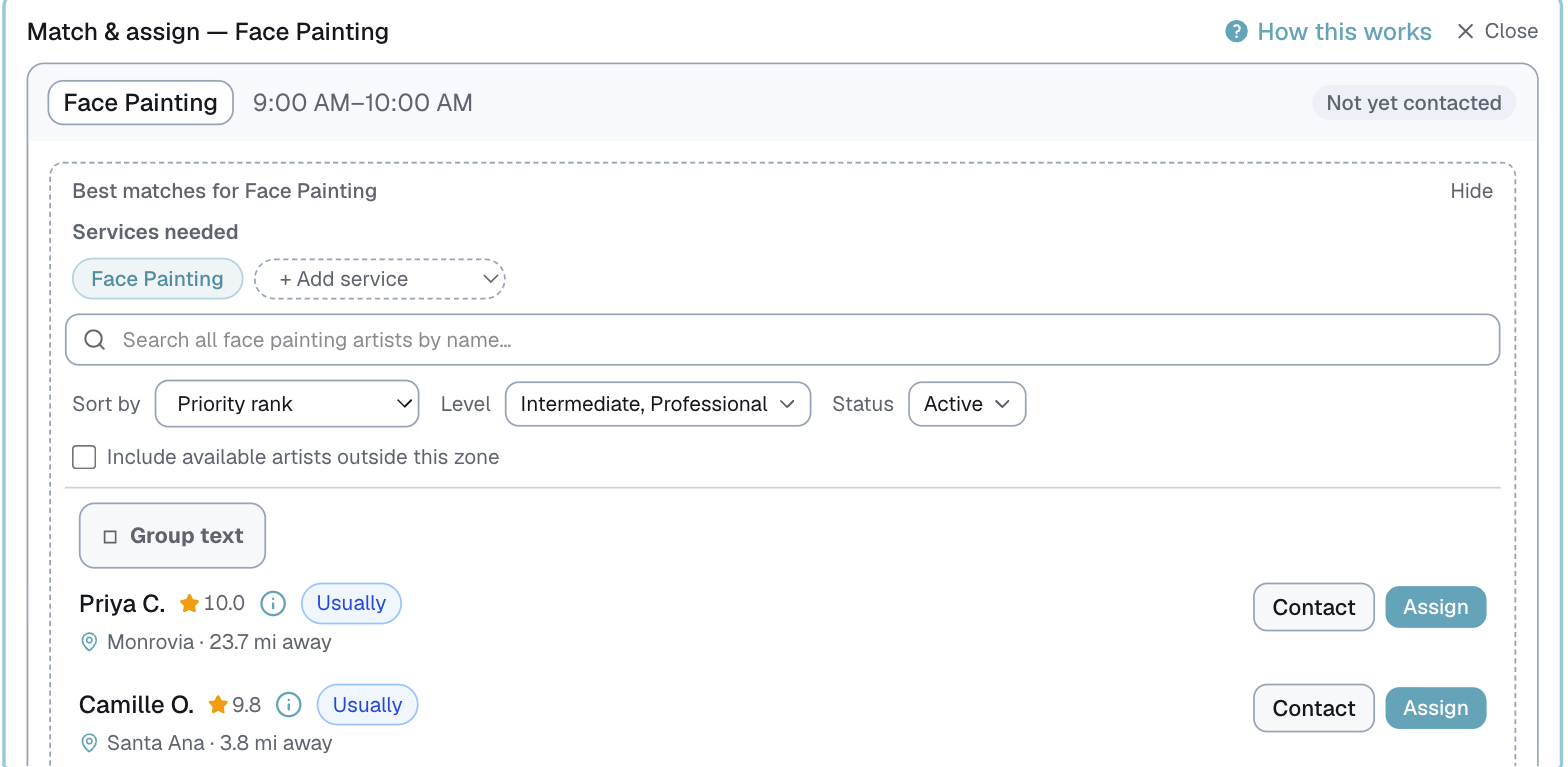
- Narrow it if you need to. Sort by offers priority rank, closest first, or highest rated. Level filters by how experienced somebody is at that service. The search field searches every person who has that service, not just the good matches.

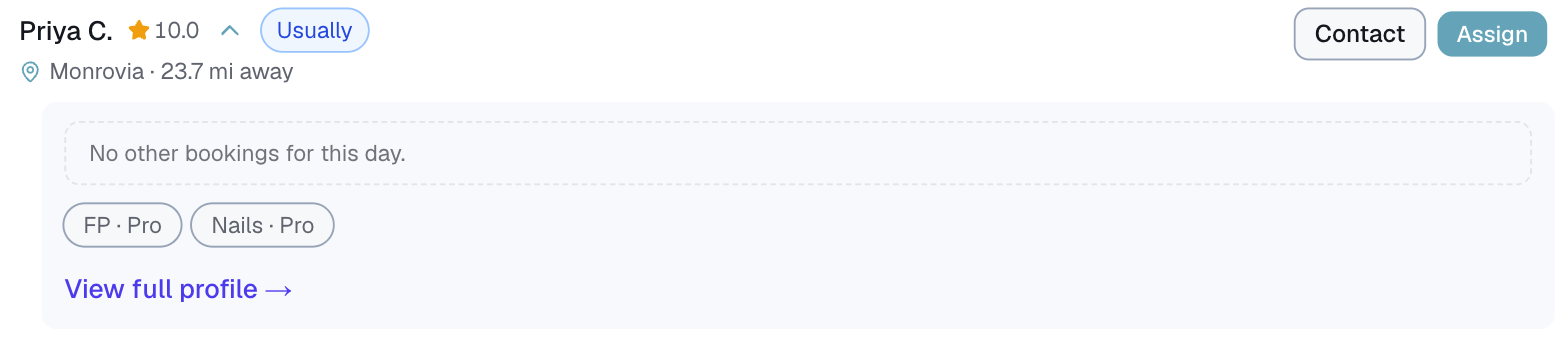
- Click anyone's name to open their row. It shows the detail behind the match, including travel rules and any fee, with a link to their full profile.
Asking them
- Click Contact on their row. The message is already written, and you can pick a different template or edit it before it goes.

- To ask several people at once, tick the checkbox at the left of each row instead, then press Group text on the bar that appears.
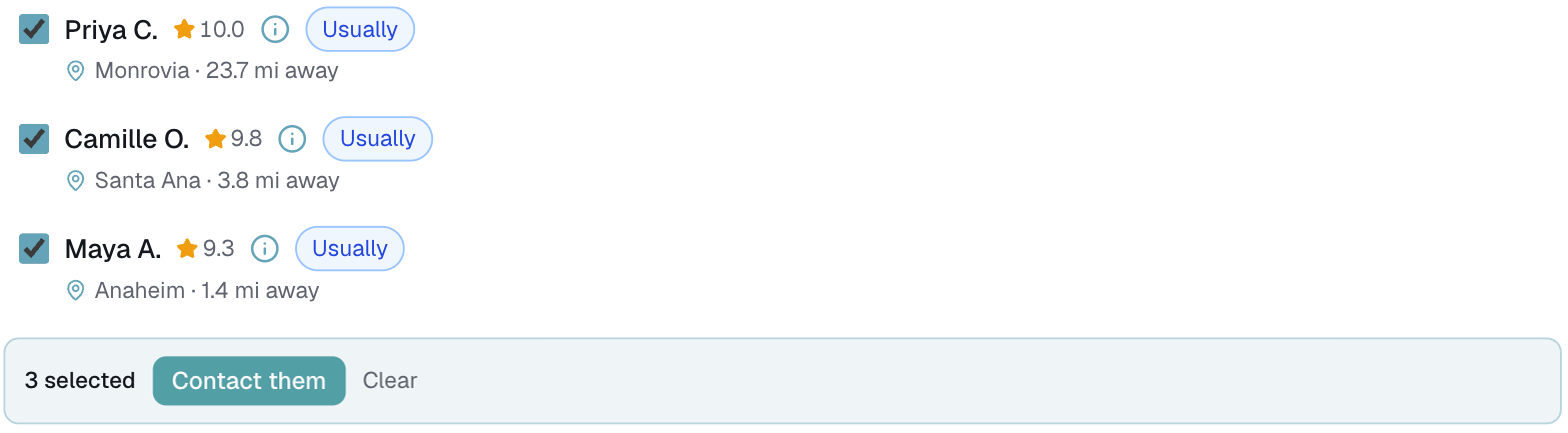
⭐ Asking several people is normal and is not overcommitting. Anyone can say yes; you still choose who gets it.
Recording what they say
Everybody you contacted moves into a list called Assign · already asked, with a running count above it: how many said yes, how many you are still waiting on.
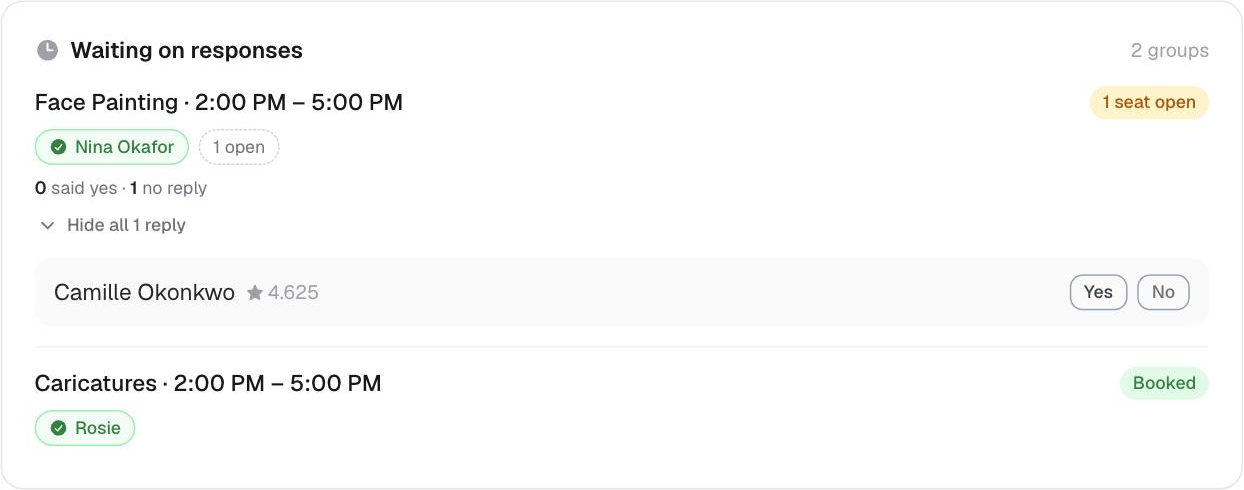
- When somebody replies, press Yes or No on their row. A no drops to the bottom and collapses out of the way, so the list stays about the people still in play.

Putting somebody on the job
- Press Assign beside the person you want.

The shift fills in, and when every seat is taken the panel says so and closes the picker. Anyone still sitting on a yes stays in the list as your backup if somebody drops out.
⚠️ Assigning does not tell them. It changes the booking, not the person's phone. Your message in the previous step is what told them, and the calendar invite is what confirms it.
Filling a whole day on the Board
The Board shows one day at a time, with every open shift on it.
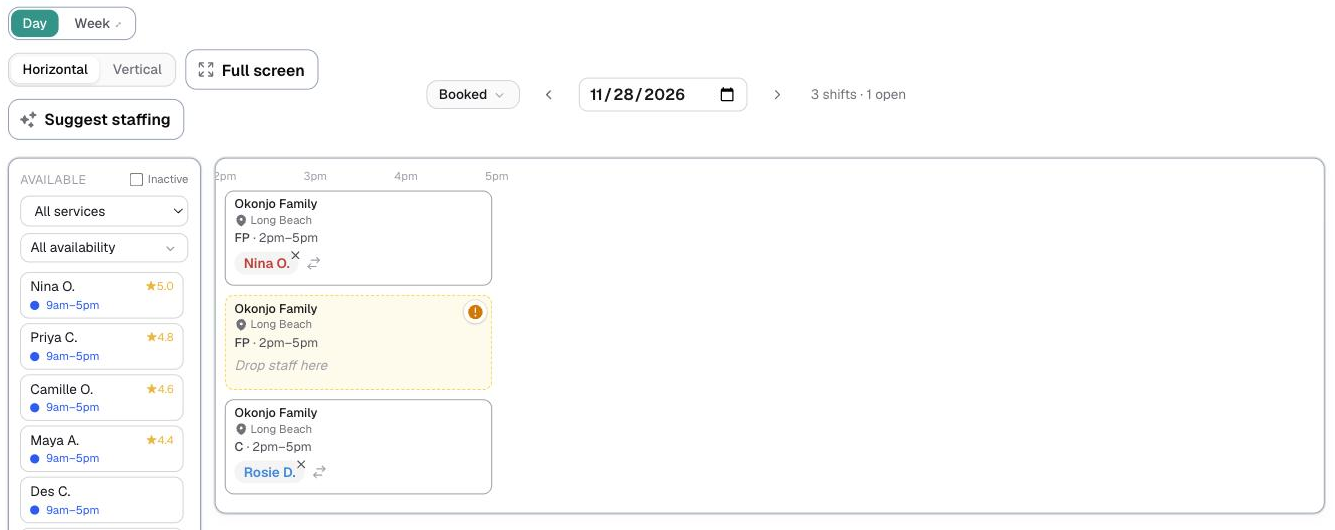
- Press Suggest staffing. Logidex fills every open shift with an eligible person, all at once, as a proposal.
- Look at what it did. If you do not like it, press Next suggestion and it offers a different arrangement.
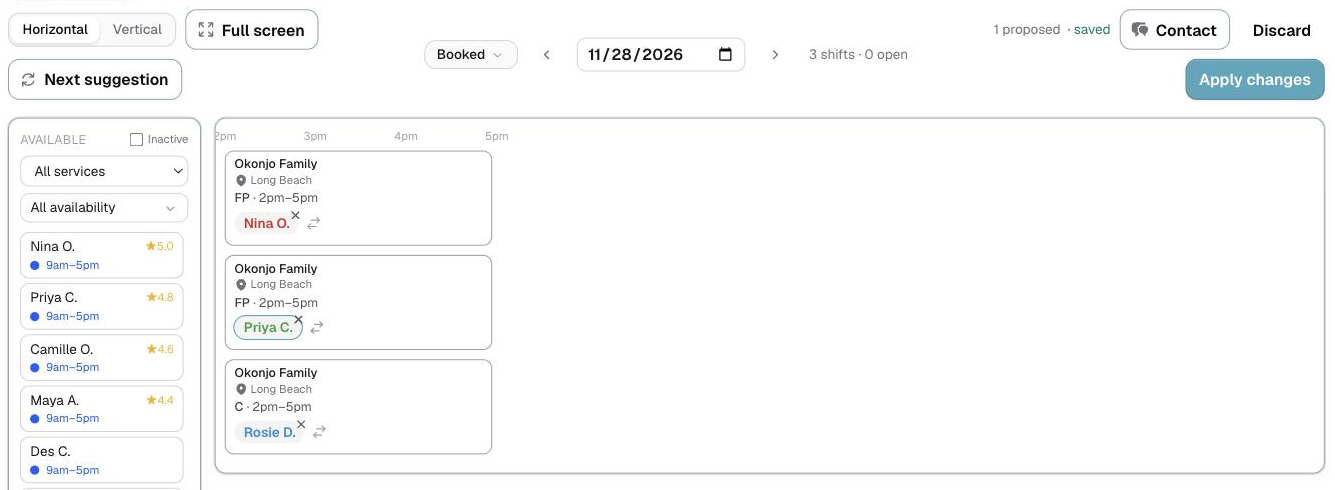
- Nothing is saved until you press Apply changes. You can also drag somebody from one shift to another before you do.
⛔ Suggest is a starting point, not a decision. It has not asked anybody. Treat an applied board as a plan you now need to confirm with the people on it.
When nobody can do it
If the match list is empty, the honest answer is usually that everyone is booked, over their hours, or too far away. Widening the level filter or searching by name shows you the people the matcher ruled out and why.
If it is close to the day and you are stuck, emergency coverage asks your whole eligible roster in one go.
The last step
Once the shifts are staffed, send them to Google Calendar. Nothing reaches anyone's calendar until you do.
Last updated