

Sending client check-ins
The Client check-ins page, the Dashboard card and the button on each booking: copy the email into Gmail, send it, mark it done.
Once client check-ins are set up, Logidex tells you who is due each day and hands you the finished email. You copy it into Gmail, send it, and mark it done.
Where to find them
- Clients: the Client check-ins button at the top of the page.
- Dashboard: the Client check-ins due card, with Open check-ins in its header.
- A booking: the Client check-in button in the top bar.
The Client check-ins page
The page has four tabs:
- Due today is everyone to send to now.
- Coming up is who is due over the next two weeks, and on which day. You can send one early from here.
- Sent this week is everyone you have marked sent, with their Check-in step.
- Balances owed is every booking whose check-in went out and whose balance isn't marked paid yet. It only shows while Client money is switched on. See Balances owed.
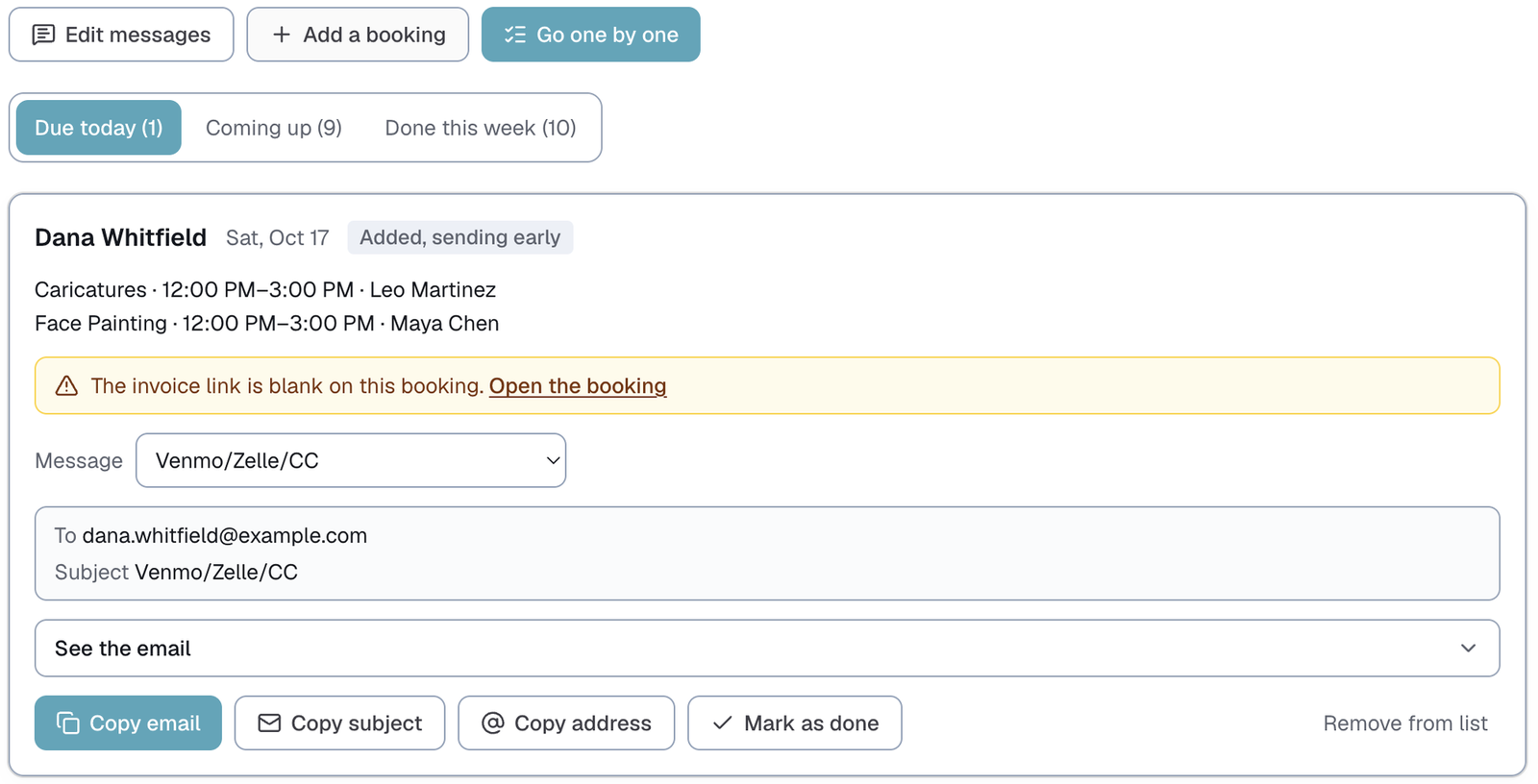
Each card shows the client, the event date, and every shift with its time and artist. Underneath:
- Message picks which of your messages to use for this client. Your default is chosen for you.
- To and Subject show where it is going.
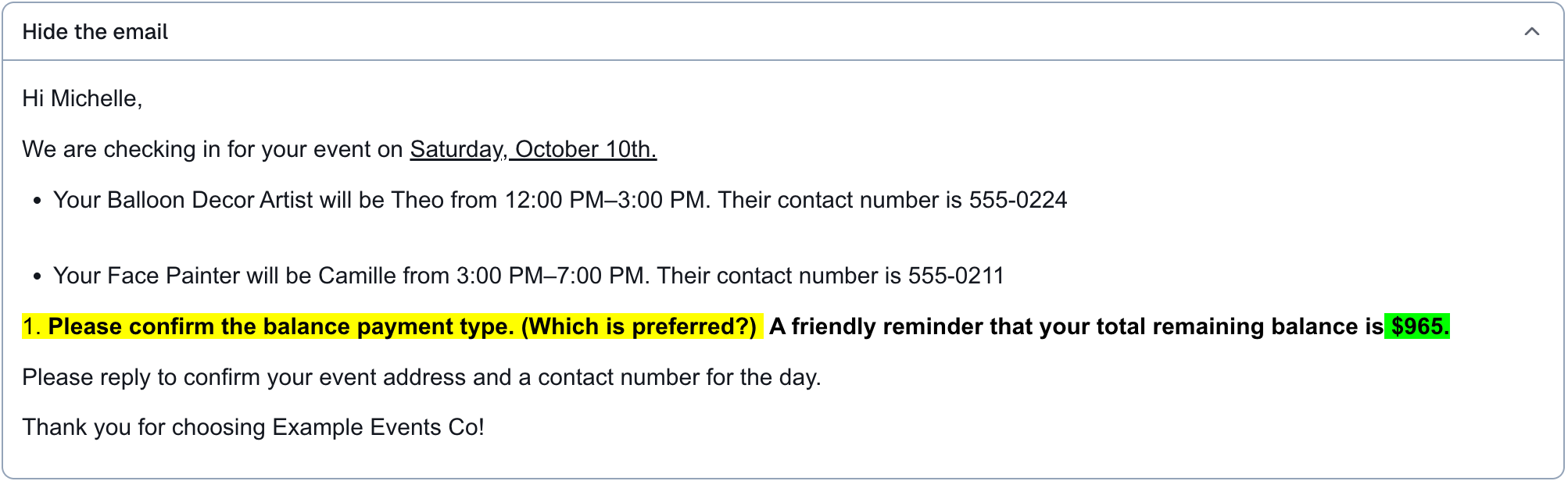
- See the email opens the finished email so you can read it first.
Sending one
- Tap Copy email.
- Open a new email in Gmail and paste. The formatting comes with it.
- Tap Copy subject and paste it into the subject line.
- Tap Copy address and paste it into To.
- Send it from Gmail.
- Back in Logidex, tap Mark as sent.
The card turns into a line saying the client is checked in, with Undo right where it was.
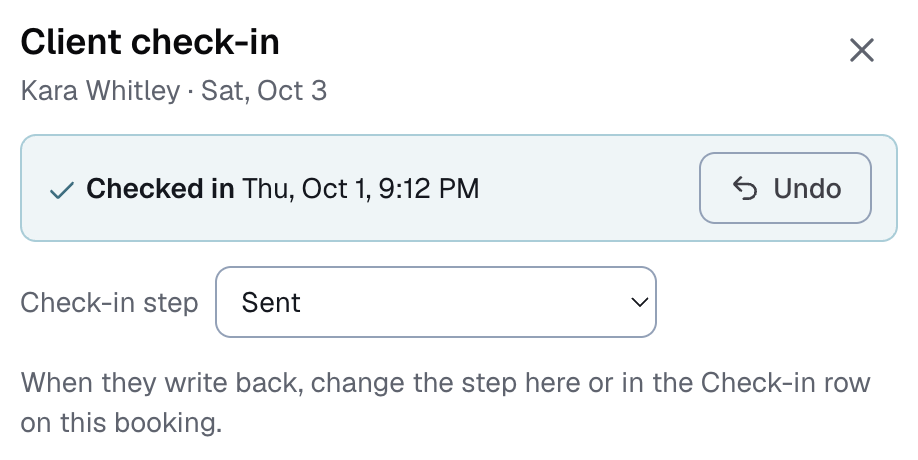
Marking it done also sets that booking's Check-in step to Sent, if it didn't have a step yet. Undo puts it back.
If something is missing, the card says so before you copy. "The invoice link is blank on this booking" has a link straight to the booking. If the email has a gap highlighted in amber, Copy email asks Copy anyway? first.
Skip takes a booking off the list without sending anything, and it won't come back.
Go one by one
On a busy day, Go one by one walks you through everyone due, one at a time. Copy what you need, send it, then tap Mark as sent & next. Skip for now moves on without marking them.
Adding a booking by hand
Add a booking lists booked jobs further out than Coming up that don't have a check-in yet. Tap one to put it on today's list with a full check-in, marked Added, sending early.
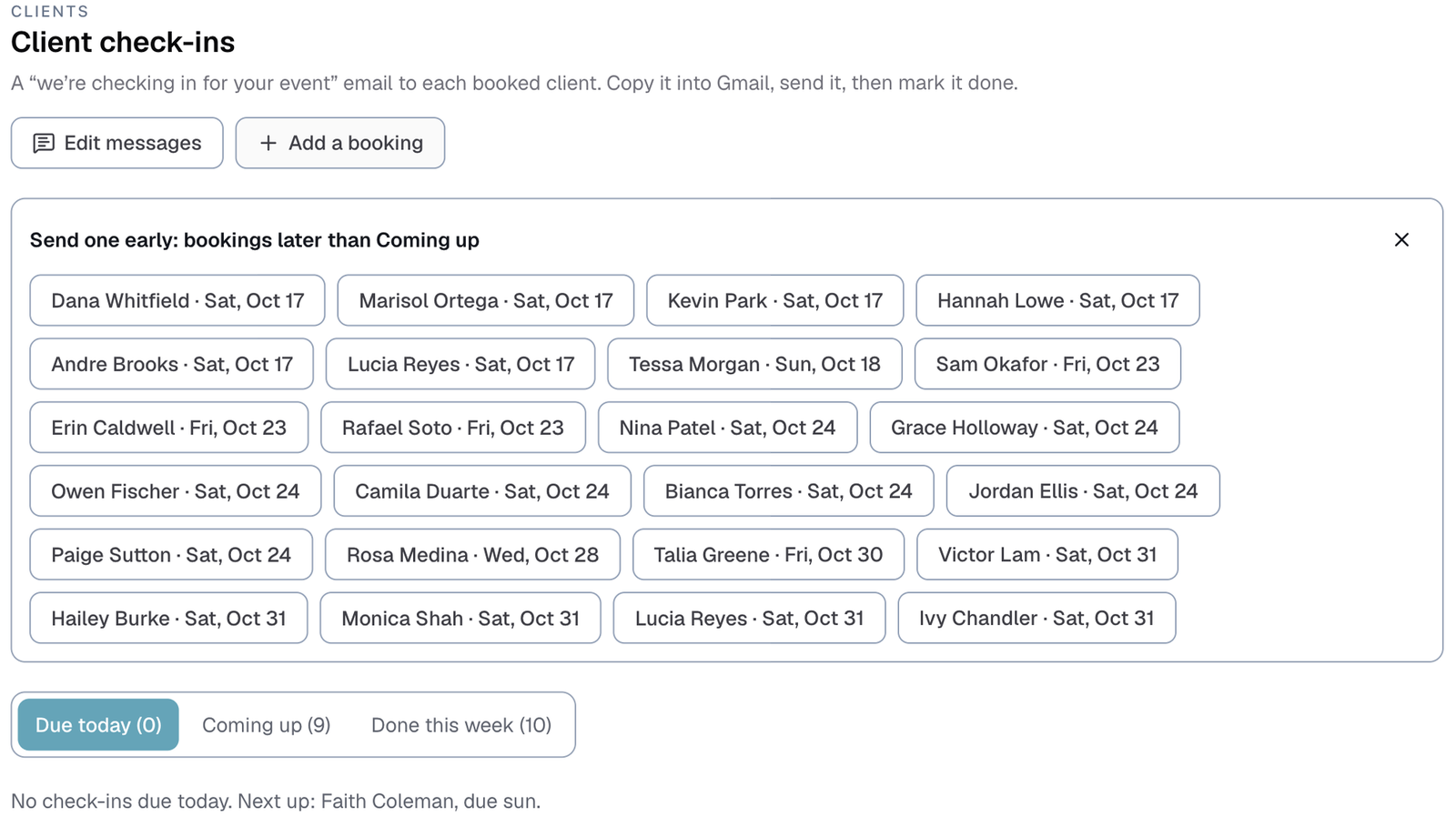
Nothing is saved until you mark it done. Remove from list takes it off again.
When an artist or time changes
If you already checked a client in and then an artist is swapped or a time moves, the booking comes back on Due today as an Artist changed update, as long as Customize is set to put them back on the list. The update only covers the shifts that changed. If a booking has more than one change, the card asks Which change? so you tell the client about the right one.
Updates also cover jobs happening today, so a same-day swap still gets a message.
Sent this week
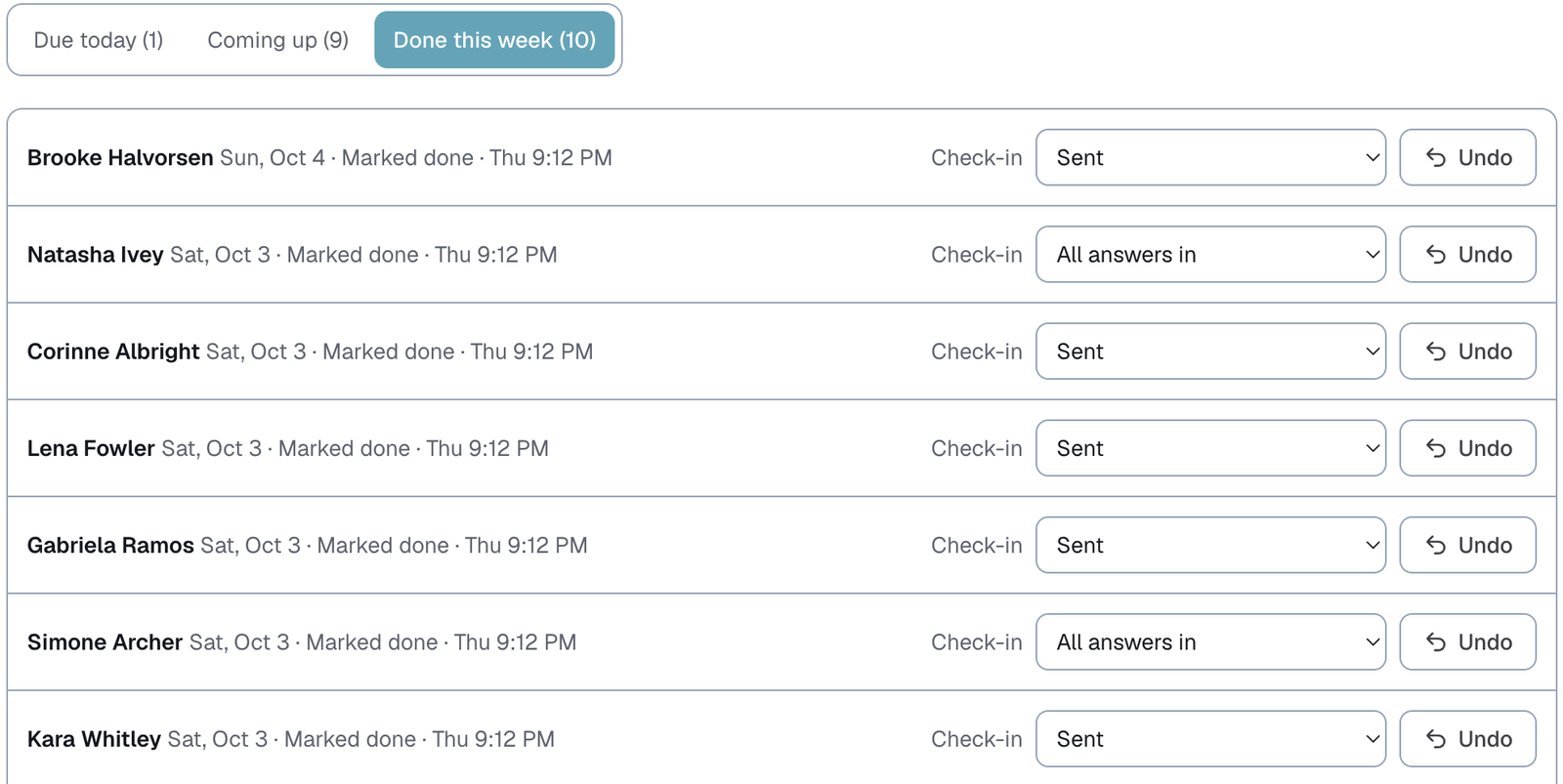
Everyone you have checked in this week, with the Check-in dropdown so you can move each conversation along as the client replies. Undo puts the booking back on the list as if you never sent it.
On your Dashboard
The Client check-ins due card shows how many are due today. Underneath, Waiting on their reply lists booked jobs whose Check-in step is still one of your "Still waiting on them" steps, like Sent or Resent, no reply.
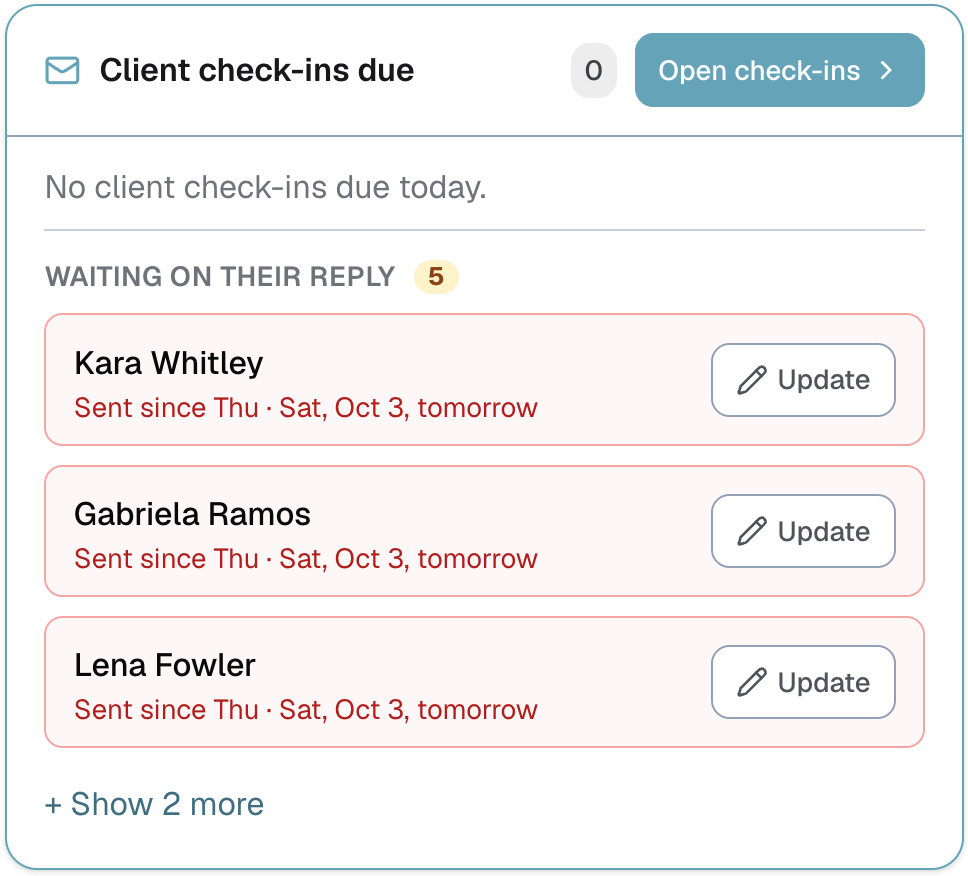
Each row says how long you have been waiting and when the event is. A row turns amber when the event is four days away or less, and red at two days or less. Update opens that booking straight at its Check-in step, so you can record the reply.
While Client money is switched on, a separate Balances owed card shows the bookings most past due. See Balances owed.
The button on a booking
The Client check-in button in a booking's top bar opens the same email for just that booking. Once it is done, it shows when it was checked in, with Undo, and the booking's Check-in step.
Last updated