

Staff check-ins
A quick "you're all set" text to everyone with booked jobs coming up. Logidex writes each message and tells you who is due.
Staff check-ins are a weekly message that makes sure everyone working for you knows what they are booked for. Logidex looks at each person's booked jobs, writes their message for them, and tells you who is due. You send it by copying it or texting it from your phone.
On your screens, "Staff" is replaced by whatever you call your people in Customize → Terminology, so yours may say Artist check-ins, Caregiver check-ins or Volunteer check-ins. For the email you send clients before their event, see "Setting up client check-ins".
Turning it on
- Go to Customize → Check-ins.
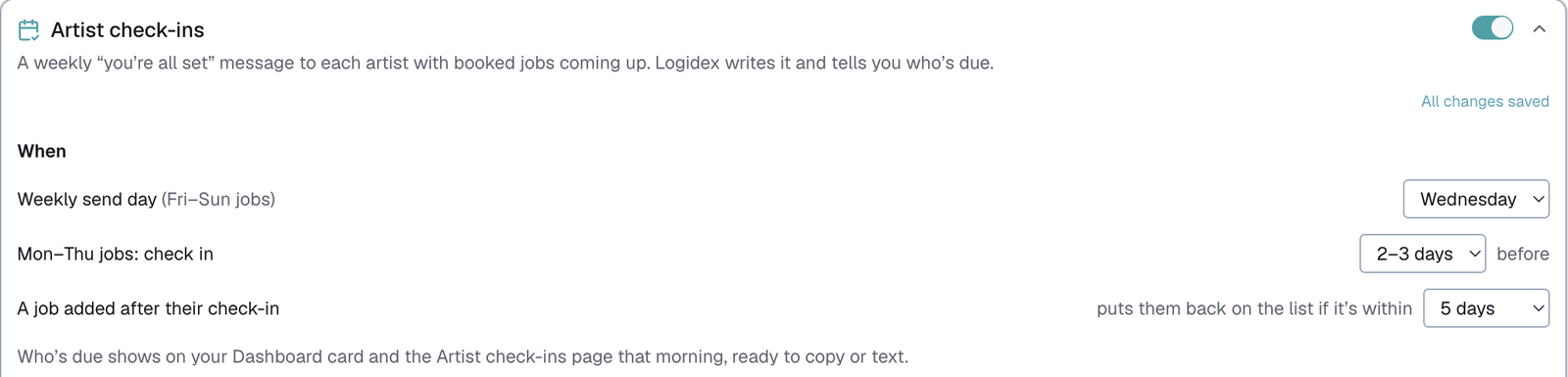
- Find Staff check-ins, the first card.
- Flip the switch in its header to on. The card opens so you can set it up.
While it is off, the Staff check-ins page, the Roster button and the Dashboard card are all hidden.
Who is due, and when
- Friday to Sunday jobs are due on your weekly send day (Wednesday unless you change it).
- Monday to Thursday jobs are due a few days before. You choose 1–2, 2–3 or 3–4 days.
- One message covers everything coming up from tomorrow through the next 7 days that has not been checked in yet. A job today is never included.
- Only booked jobs count. Two shifts at the same booking count as one event.
- Missed your send day? They stay on the list until their job, so nobody slips through.
Your messages
The Messages part of the card has two rows of templates:
- Full check-in is the weekly message.
- New job added goes to someone who was already checked in this week and has since been booked for something new. It only mentions the new job.
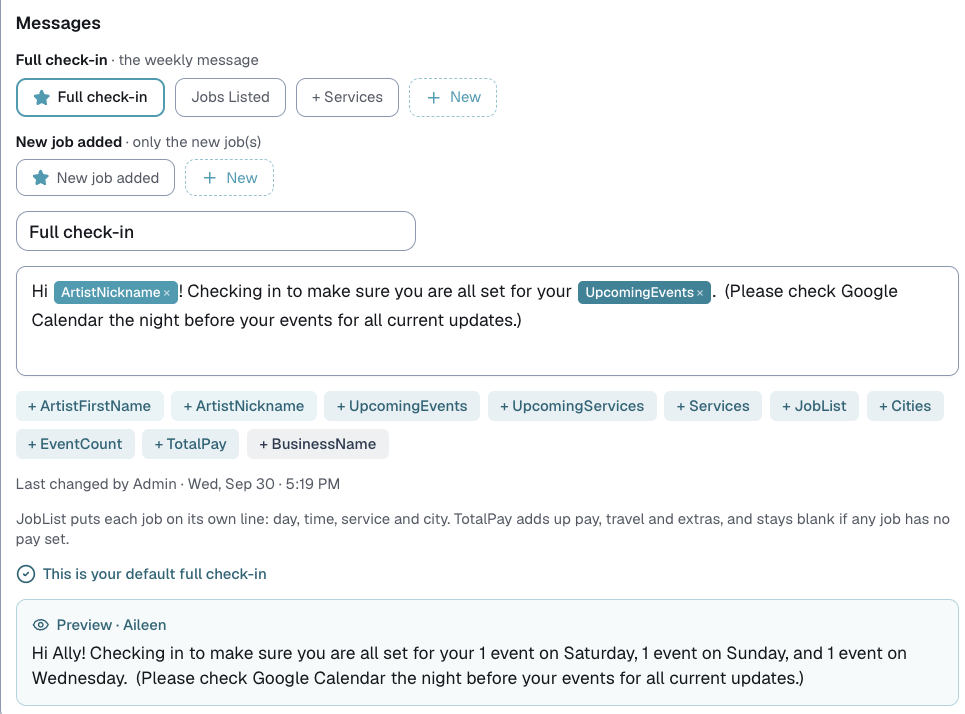
The template with a ★ is the default for its row. Open any template and tap Make this your default to change it. Use + New to add another one.
Build each message with the placeholders under the editor. They fill in for each person when you send:
- ArtistFirstName and ArtistNickname are their name. If they have no nickname, their first name is used.
- UpcomingEvents reads like "1 event on Saturday and 2 events on Sunday".
- UpcomingServices adds the service, like "1 Face Painting event on Saturday".
- Services, Cities and EventCount list what, where and how many.
- JobList puts each job on its own line with the day, time, service and city.
- TotalPay adds up pay, travel and extras. It is only offered when Staff pay is on, and stays blank if any job has no pay set.
- BusinessName is your business's name.
The preview underneath shows how it will read.
Finding your check-ins
- Roster: the Staff check-ins button beside Pay report shows how many are due today. On a phone it is in the ••• menu.
- Dashboard: the Staff check-ins due card.

Sending check-ins
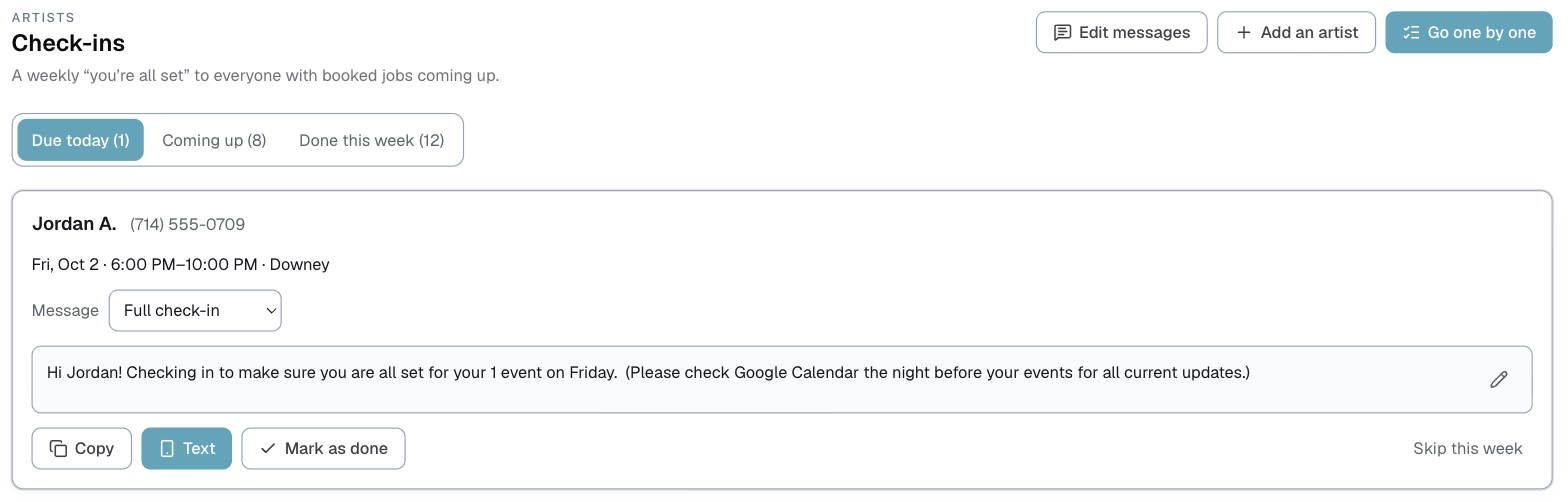
The Due today tab lists everyone due, with their phone number, their jobs, and the message written for them.
- Pick a different template from Message if you want to.
- To change just this one message, tap the pencil. Your template stays as it is.
- Tap Copy to paste the message anywhere, or Text to open it in Messages on your phone.
- Tap Mark as sent once it has gone out. Tapping Text marks them sent for you.
When you mark someone done, their card turns into a teal "is checked in" line with Undo right where it was. Skip this week takes someone off the list without sending anything.
New job added
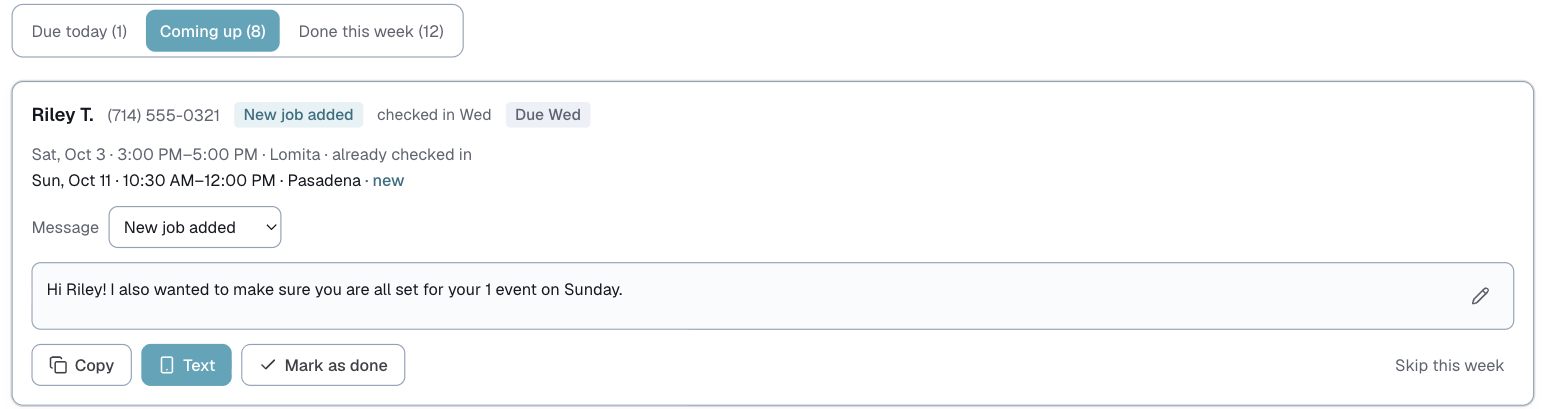
If someone you already checked in this week gets booked for another job, they come back on the list with a New job added tag. Their card shows what they have already been told and what is new, and the message only covers the new job. You choose how close the new job has to be in Customize → Check-ins: 3 days, 5 days or the week.
Go one by one
On a busy week, Go one by one walks you through everyone due, one at a time. Copy or text the message, then tap Mark as sent & next. Skip for now moves on without marking them.
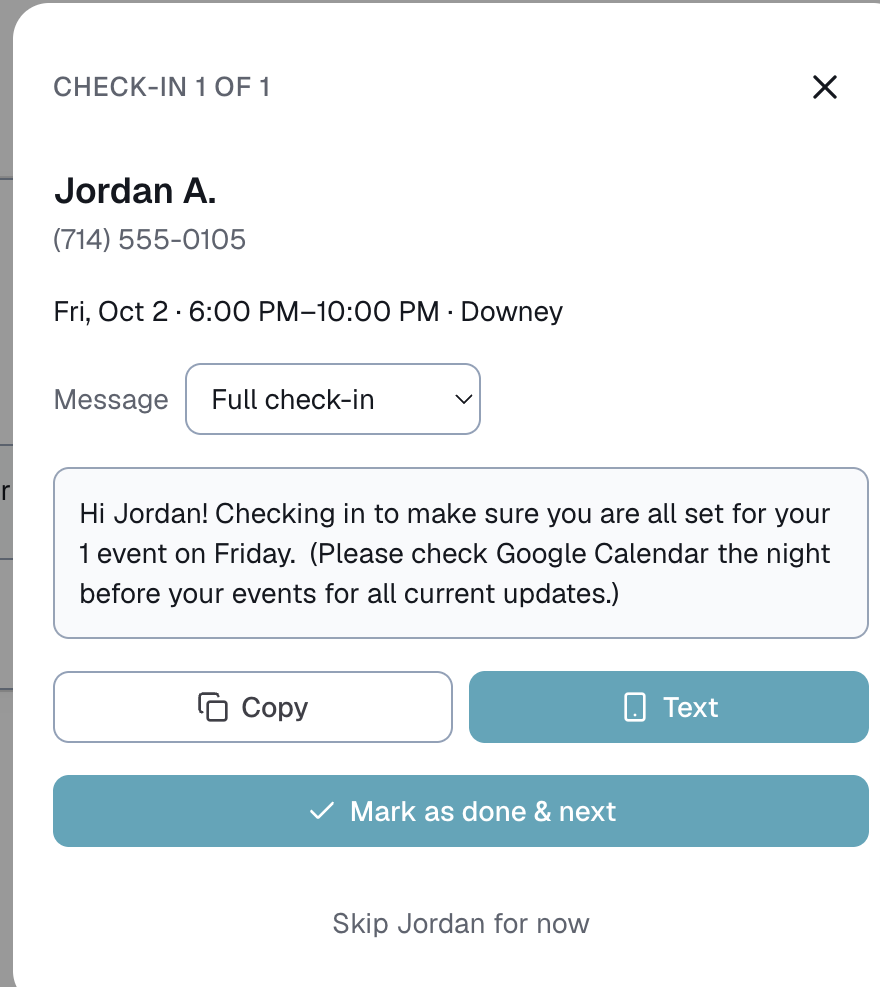
Adding someone by hand
+ Add an artist lists everyone else with booked jobs this week. Pick someone to add them to today's list with a full check-in. If you change your mind, Remove from list takes them off again without saving anything.
Did they reply?
Open Sent this week to see everyone you have checked in.
- Waiting on reply lists the people you have not heard back from yet.
- Tap ✓ Staff confirmed (in your own word) once they reply.
- After a day with no reply the row turns amber. After two days, or once their first job is a day away, it turns red.
- People stay in Waiting on reply until their last job in that check-in has happened.
- Undo check-in puts them back on the list as if you never sent it.
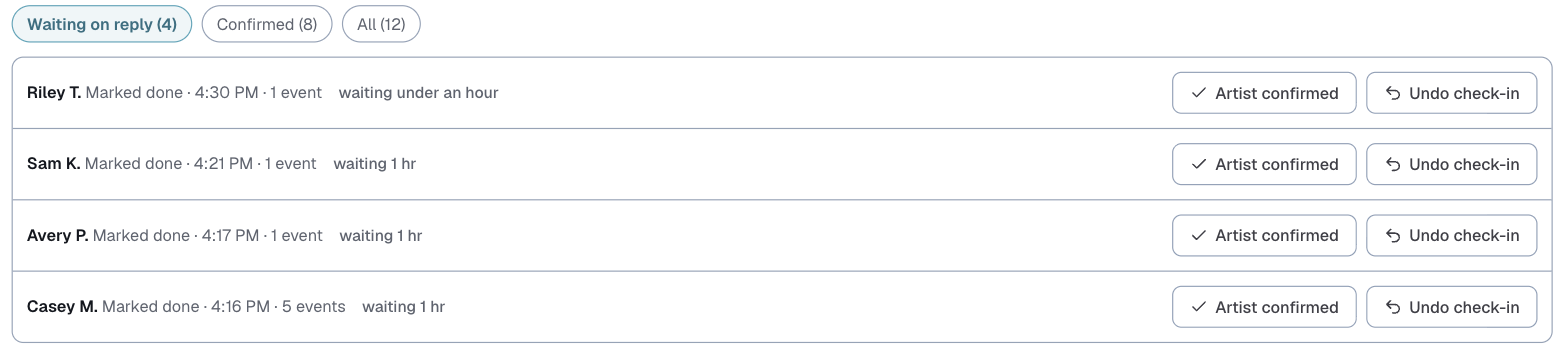
On your Dashboard
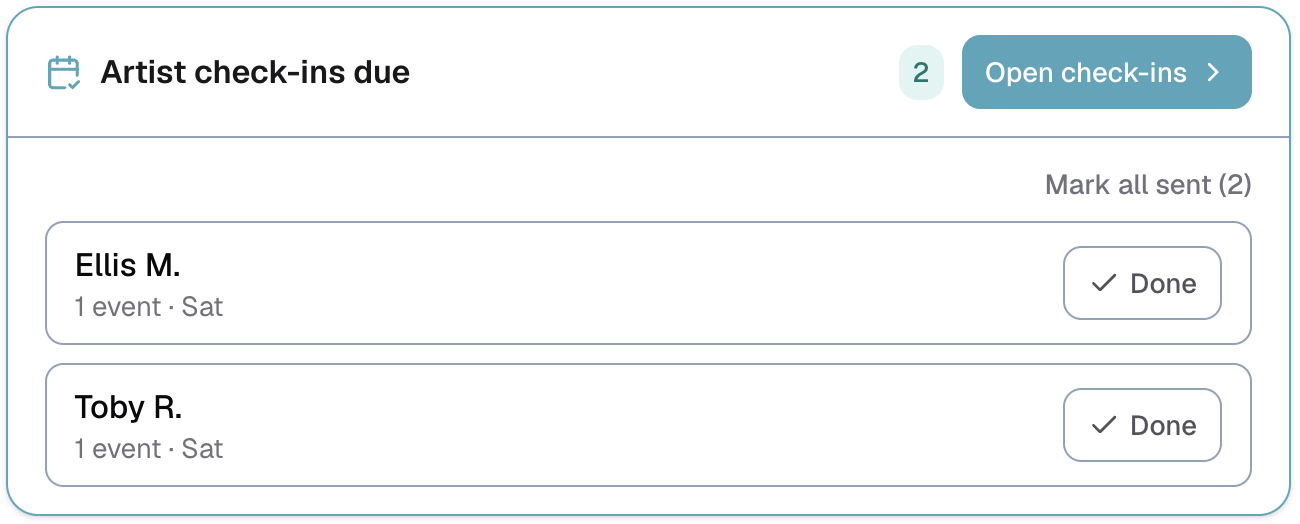
The Staff check-ins due card shows who is due today, with a Done button for each person and Mark all sent to clear the whole list at once. Mark all sent asks you to confirm first, and you can undo it.
Underneath, Waiting on their reply lists the people you have not heard back from, with a Confirmed button for each.
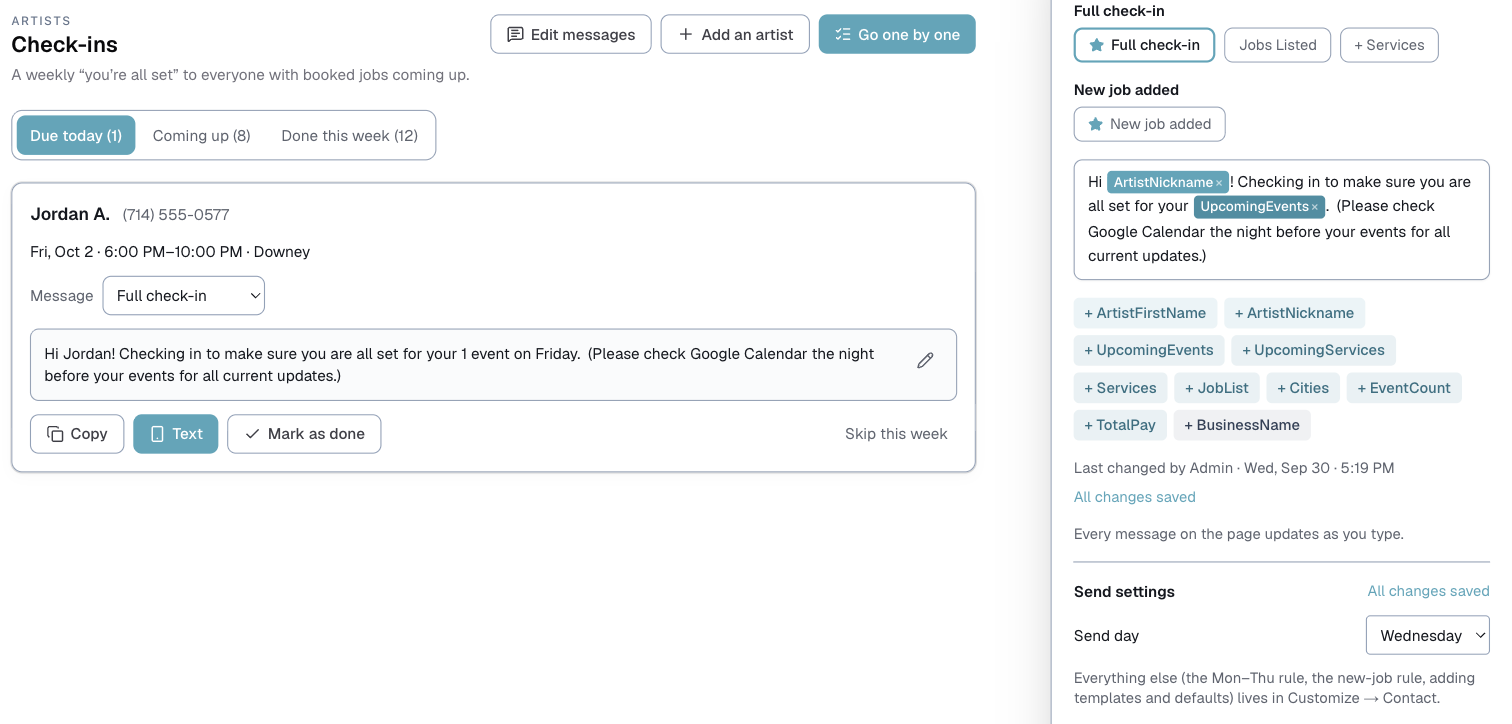
Editing messages from the Staff check-ins page
Tap Edit messages to change your templates without leaving the page. On a computer it opens on the right, and every message on the page updates as you type. On a phone it slides up from the bottom. Under the editor you can see who last changed that message, and when.
If someone else on your team edits a message
Anyone with admin access can change the wording of your messages. Only the owner can change the send day, turn check-ins on or off, or change the rules for who is due. An admin sees those settings locked.
When someone other than you changes a message, it goes live straight away, and you get a Message changes note under Needs attention on your Dashboard. Tap the i to see the message before and after, with added words in teal and removed words crossed out in red. Then choose:
- Got it to keep their change.
- Put it back to restore the message as it was before.
Several edits in a row to the same message count as one note, and your own edits never send you one.
Last updated