

Travel fees, minimums and day limits
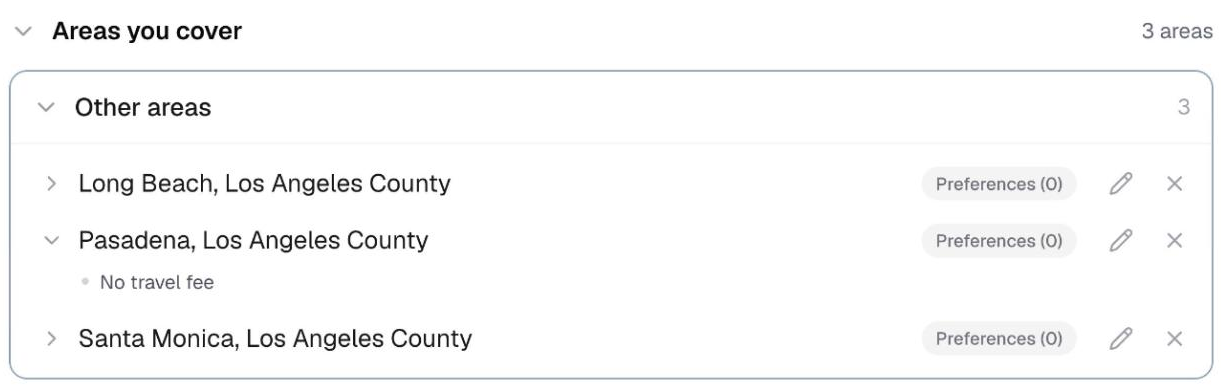
Your staff set their own terms for each area they will travel to. Here is what each condition does and how matching uses it.
Once you have drawn your travel areas, each person picks which ones they will work in, and can attach conditions to any of them.
⭐ These are their terms, not your markup. A travel fee is what that person charges to go there. You are seeing what they will and will not do, which is the whole point.
The three conditions
Travel fee: what they need monetarily to work in that area. It can drop, or go away, as the job gets longer.
Minimum length: on a free area, they will not travel there for anything shorter. "I am not driving to Pasadena for one hour."
Days: on a free area, they will only travel there on weekdays, or only on weekends.
Both, or either
If someone sets a minimum and a day limit, they choose whether both must be true or either is enough. It reads as a sentence on the screen, so you can check it says what they meant.
The one that surprises people
⚠️ A minimum length with no fee is a hard no. If somebody has set "4 hour minimum" and no travel fee, they will not be offered a three-hour job in that area at all. It is not a price adjustment, it is a refusal.
That combination usually appears where you have set an area as no-fee. The person cannot charge for travel there, so the minimum is the only lever they have left. It is worth knowing before you wonder why a perfectly free artist is not showing up.
Once there is a fee, length works differently. It stops being a refusal and becomes part of the price: $25 under 2 hours, $15 from 2 hours, nothing from 3 hours. And a base fee typed on its own is waived automatically for jobs at or over your short-event threshold (set in Customize → Travel), so it only applies to shorter jobs unless they change it.
Where the fees come from
Tapping + Travel fee on an area opens a set of cards to pick from:
- Your common setups, the shortcuts you manage in Customize → Travel. Tapping one fills in the fee and its length breaks.
- Setups saved for that person. When someone builds a fee of their own and saves it, it is kept as a card for their other areas. The trash can on a saved card removes it, with Undo in case of a slip.
- Build my own, for blank fields.
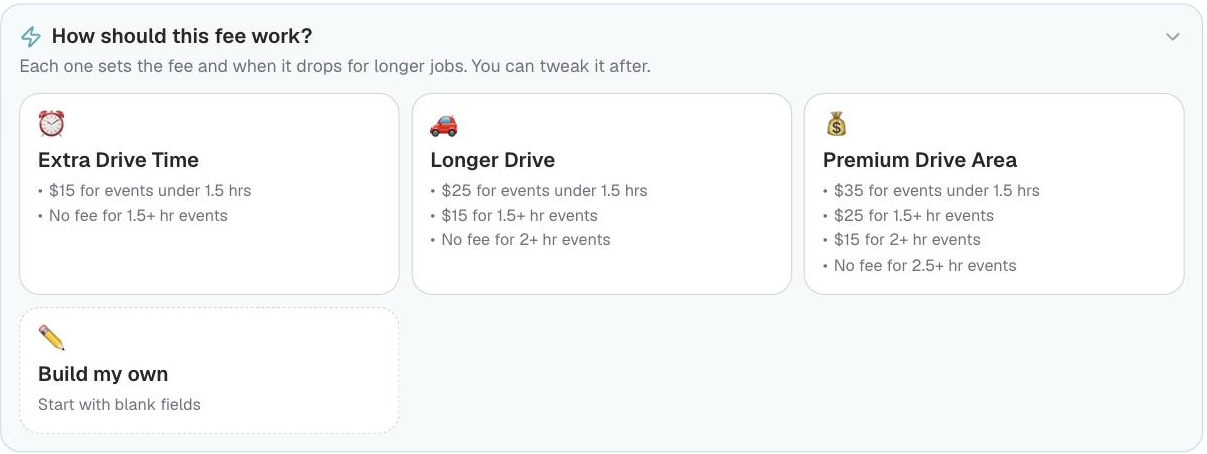
Whichever they pick, every field stays editable before they save. Under the fee, Charge differently on weekdays? gives weekdays their own fee and breaks.
Setting up several areas at once
When somebody has the same terms across a lot of areas, set it once and apply it to all of them.
- Set up one area the way they want it.
- Just above Save Preference, the question Are there other areas you would treat the same? appears once there is a fee or a condition to copy. Press Apply to more areas. (No thanks hides it for that area.)
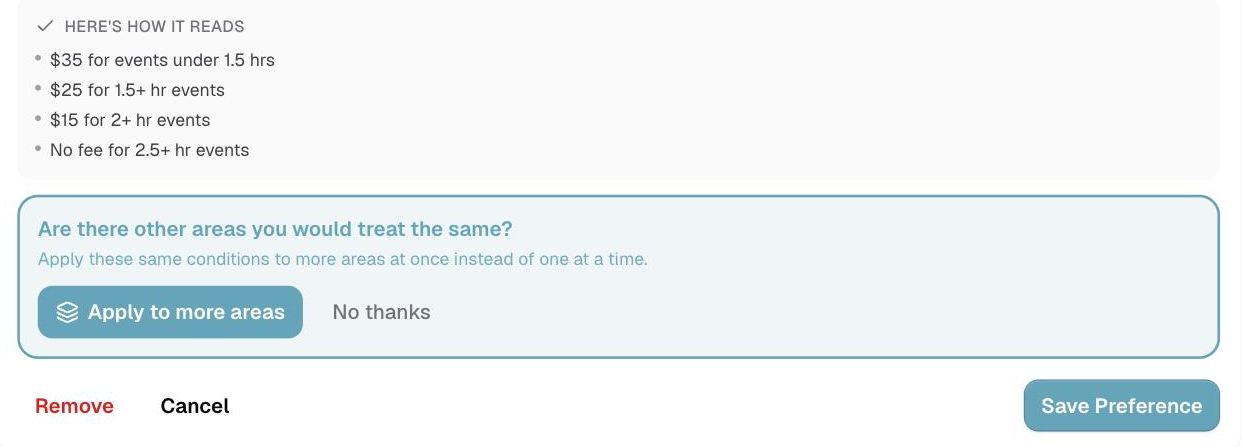
- The page jumps up to the map with that area already selected. Tap every other area that should match.
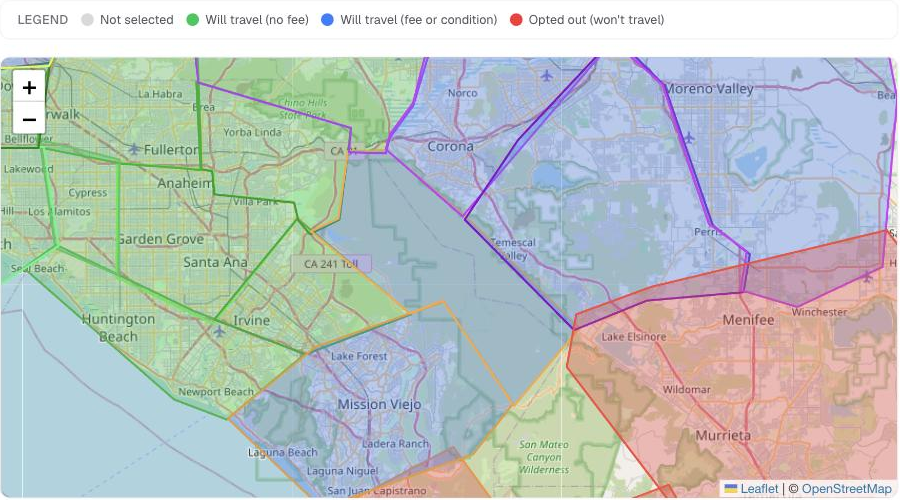
- Scroll down to Set one preference for the selected areas, check the setup, and press Apply to those areas. The area you started from is saved along with the rest.
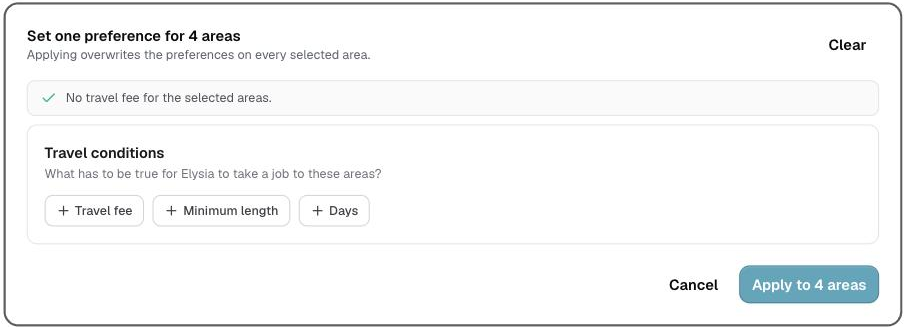
To start from nothing instead, press Set up several areas at once under the map, tap the areas, and set the terms once.
⚠️ Applying replaces whatever those areas had before.
What matching does with it
All of it, automatically. Someone who will only cross town for a four-hour job stops appearing for two-hour jobs across town. You do not have to remember anyone's rules.
You can edit these yourself
An admin can set or change anyone's travel conditions from their profile. Most agencies let people set their own, since they are the ones driving, but it is there when somebody tells you over the phone.
Last updated