

Importing and exporting your roster
Bring a spreadsheet of people in, check what Logidex made of each column, and download your roster back out.
This covers the spreadsheet side of your roster. For adding one person by hand and inviting people to log in, see Adding your team and inviting them.
Importing a spreadsheet
- Go to Roster and press Import. On a phone it is in the ••• menu.
- Press Download Excel template if you want a starting point, fill it in, and save it as a CSV file.
- Press Choose File and pick your CSV.
Logidex recognizes these columns on its own, even under slightly different headings ("Mobile" for Phone, "Surname" for Last Name): First Name, Last Name, Nickname, Email, Phone, Address, City, State, ZIP, Travel Radius and Skills.
⭐ Put the whole address in the one Address column. Street, city, state and ZIP together. Logidex splits it up and places it on the map.
Skills go in one cell, separated by commas. Each name is matched to your skills in Customize → Skills, ignoring capital letters. A name that matches nothing becomes a new skill, so "Face paint" and "Face Painting" would end up as two. Check the list afterward.
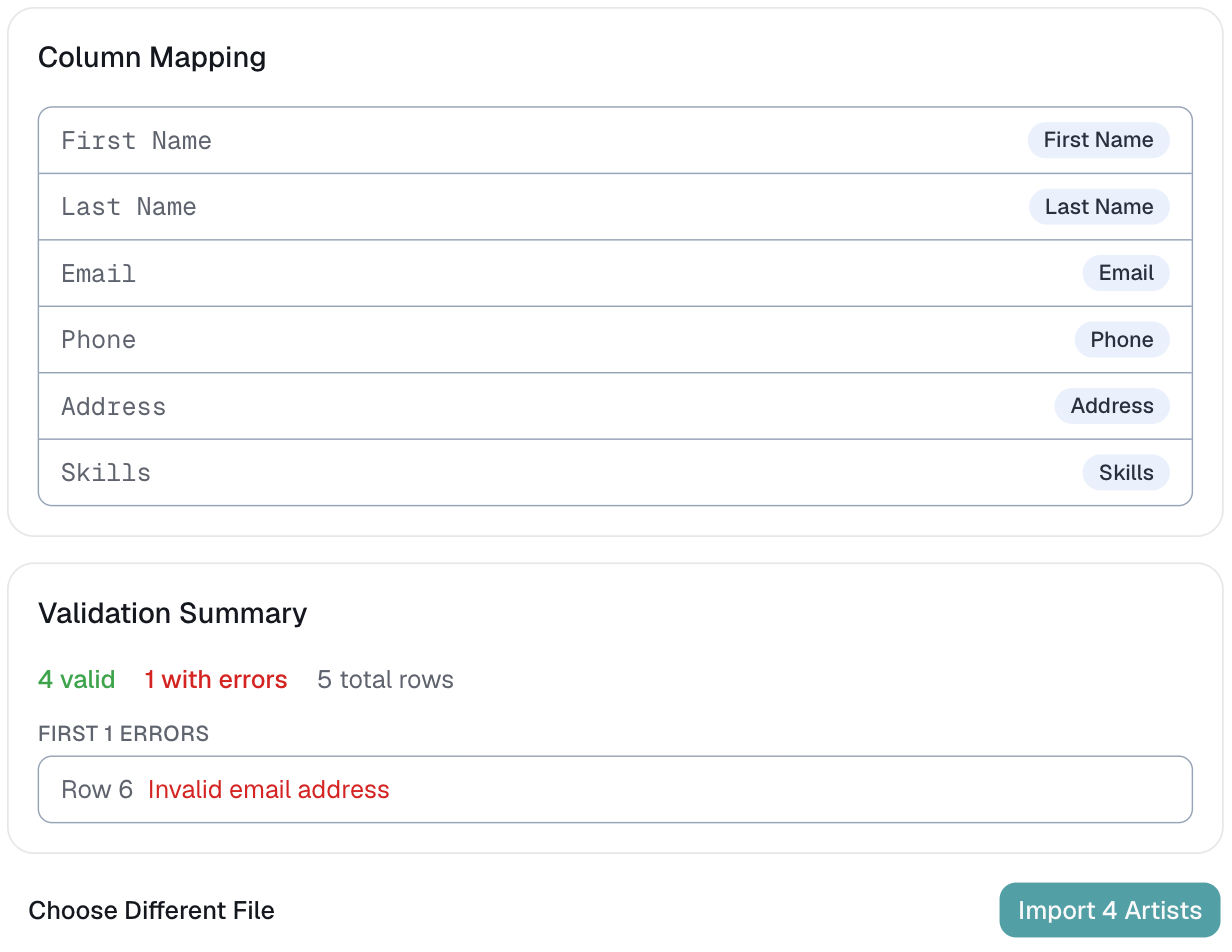
Checking before anything is saved
Column Mapping lists every column in your file and the field it goes to. A column Logidex does not recognize says Skipped and is left out.
Validation Summary counts the rows that are ready and the rows with a problem, and shows the first few problems with their row numbers. Only the ready rows are imported. Fix the others in your spreadsheet and import just those.
Press Import when it looks right.
After the import
The last screen tells you how many people came in, how many skills were attached, and how many addresses were found on the map. Anyone whose address could not be placed needs it fixed on their profile before travel matching can use it.
- Nobody is invited. The import creates profiles and stops there.
- Imported skills start at Beginner and are waiting for you to set the level. See Skills and skill levels.
⚠️ Importing the same file twice makes two of everyone. Logidex does not check for people who are already on your roster, so import only the new names.
Exporting your roster
Press Export on the Roster page (on a phone, in the ••• menu). You can narrow it before downloading:
- Status: All, Active or Inactive. Active includes anyone set to Emergencies only.
- Just one person, or Only a skill.
It downloads as a CSV file that opens in Excel or Google Sheets. Archived people are never included.
Last updated