

Step 1 — Customize: teaching Logidex your business
Your words, the details you keep on people and jobs, your message templates, and your inquiry form. Everything else depends on this.
This is where Logidex learns your business. Everything after it depends on what you set here, which is why it is step one of the setup order.
Go to Settings → Customize. The sections are listed down the left, and there are four that matter most at the start.
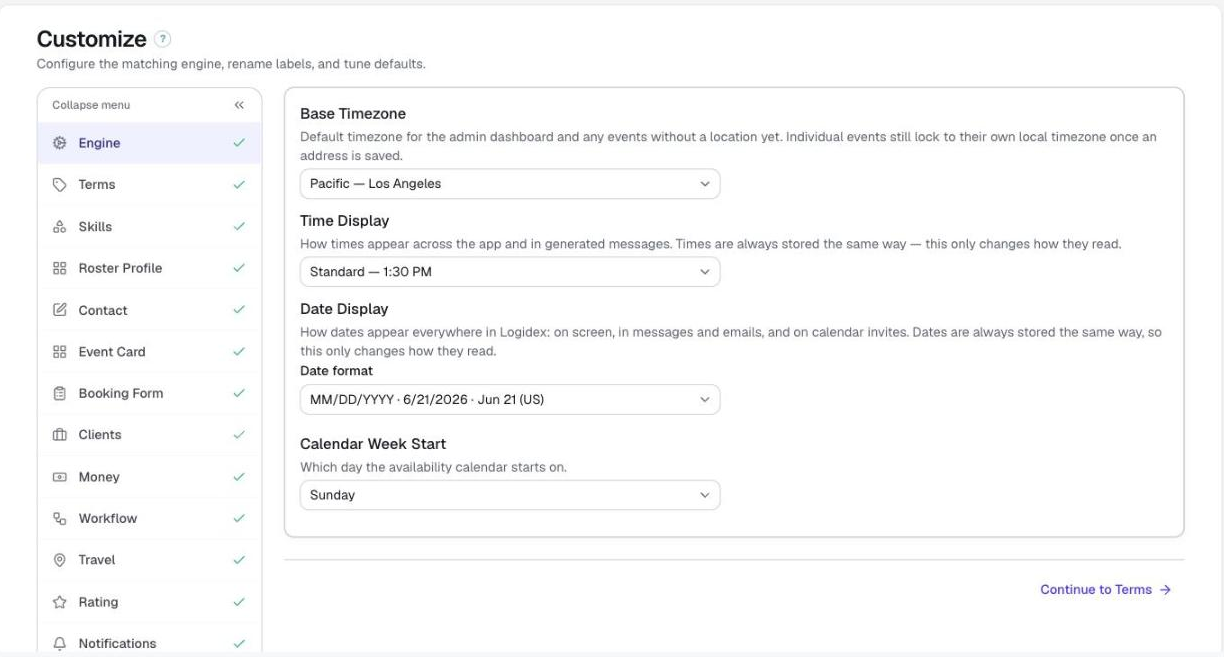
Terms
What you call your staff, your services and each stage of your workflow.
You picked the first two when you signed up. This is where you change them, and where you add the rest — your Skills (the services you offer) and your Workflow statuses (the stages a booking moves through, from inquiry to done).
Roster Profile and Event Card
The details you keep on a person, and on a job.
Roster Profile decides what appears on someone's card in your roster — their photo, their documents, and any custom fields you want, like a shirt size or a vehicle.
Event Card does the same for a booking: parking notes, a theme, a back-up contact number, guest numbers. Add whatever you currently keep in a spreadsheet column or in your head.
Once it is set up, this screen also tells you how each field is doing: which question on your Logidex form or outside form fills it, and whether it prints on your staff's calendar invites.
Contact
The message templates you use to reach out to your staff — the text you send when you are asking someone to take a shift.
You can use tags such as [ArtistNickname] so each message comes out personalised. There is a group version too, for when you are asking several people at once.
Booking Form
This is where you build your Logidex form, the one clients fill in at your /book/ address.
Set up your Event Card first. Once it exists, the form builder lists every field on your card that nothing is asking about yet, as chips you tap to turn into a question, already named and already pointed at that field.
Every question also shows a pill saying where its answer lands: → Parking for a card field, Booking notes for free text, or Email only for an answer you want to read in your new-booking email but not keep. Tap the pill to change it.
Build the form before the card and none of that has anything to offer you, which is the single most common piece of rework at this stage.
Your Logidex form is live from the moment your account exists, at an address ending in /book/ and your business name. You do not have to build it before you can use it.
If you would rather keep the inquiry form you already have on your website, that is step 2 instead.
You can change any of this later
None of it is locked in. Changing a word updates it everywhere at once, and nothing is stored twice, so there is no clean-up.
Last updated