

Notes: a shared notebook for your admins
Keep pay rates, venue quirks and who-to-call-first lists in one place every admin on your team can read and edit. Your staff never see it.
Notes is a notebook inside Logidex for the things that live in your head: pay rates, venue quirks, which client always runs late, who to call first when someone drops out.
Open it from Notes in the menu.
⭐ Every admin on your team shares the same notes. Your staff never see them, not even in their portal.
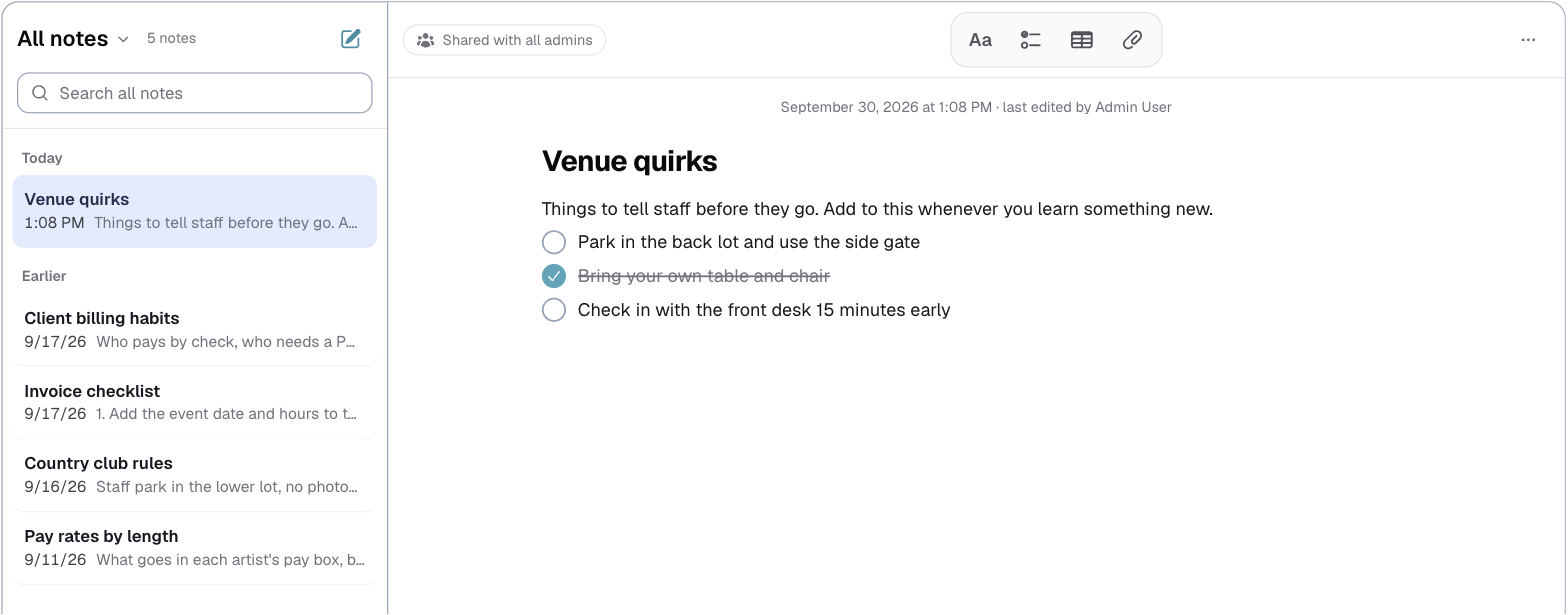
Writing a note
Press New note and start typing. There is no Save button: a note saves itself a moment after you stop typing, and the words Saving… appear while it does.
The toolbar gives you:
- Text style: a heading, a bulleted list, or plain text.
- Checklist: lines with a box to tick.
- Table: rows and columns, handy for pay rates by length of job. Add rows and columns as you go.
- Attach a photo or PDF: up to 10 MB each. Photos show inside the note; a PDF opens when you click it.
⭐ No notes yet? Press Start a pay-rate table for a ready-made table of pay by length of job.
Keeping them organized
- Folders: press New folder, then use Move to folder on a note's menu. Deleting a folder does not delete its notes; they move to All notes.
- Pin to top: keeps a note you use constantly above the rest.
- Search all notes: searches every note at once.
Notes are listed with the newest changes first, grouped as Today, Yesterday, Previous 7 Days and Earlier.
When two admins edit the same note
If someone else changes a note while you are typing in it, a bar appears naming who changed it, with two choices:
- Use theirs replaces what you typed with their version.
- Keep mine keeps your version and saves it over theirs.
Nothing is merged, so read what they changed before you choose.
Deleting, and getting a note back
Delete moves a note to Recently Deleted. It stays there until you remove it yourself, so nothing is lost by accident.
- To bring it back, open Recently Deleted, pick the note and press Restore.
- To remove it for good, press Delete forever. That cannot be undone.
Removing an attachment removes it from that note for every admin.
Getting notes out
A note's ⋯ menu (top right of the note) has three ways to get it out, under Export:
- Save as PDF: opens a printable version. Choose Save as PDF in the print window.
- Download spreadsheet: an Excel file, with each table as rows and columns.
- Copy as text: the whole note, ready to paste into an email or a message.
To export everything at once, the folder menu has Export all notes as PDF and Export all notes as spreadsheet. The spreadsheet puts each note on its own tab.
Last updated