

Adding another admin to your account
How to give someone else admin access, what they can see, and how many admin logins your plan includes.
If somebody else helps you run the business — an assistant, a partner, an office manager — you can give them their own admin login rather than sharing yours.
How
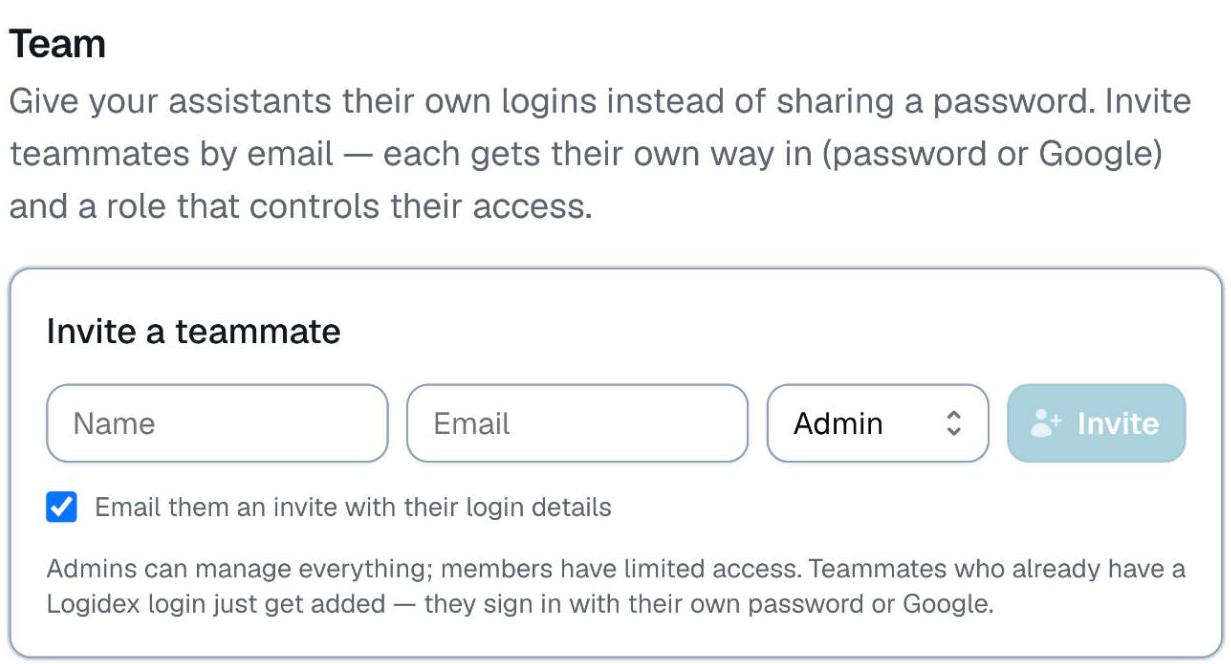
- Go to Settings → Organization.
- Find the team section.
- Enter their email address and send the invite.
They get an email, set their own password, and sign in on the Admin side.
What an admin can see and do
Almost everything you can. They see your roster, bookings, clients, money and settings, and can change nearly all of it. A few things stay with you as the owner: your plan and billing, Customize, Booking intake, your team and organization settings, and the Google Calendar and Square connections. Admins can see those but not change them.
This is the whole point of the product, and it is worth saying plainly: an assistant with an admin login can staff a Saturday without asking you who is good in which city, because the answers are on the screen rather than in your head.
How many you get
Admin logins are included by plan:
- Starter — 1
- Team — 2
- Agency — 4
- Network — unlimited
If you try to invite one past your limit, Logidex stops you and says so rather than quietly charging you. You can either move up a plan or buy a single extra seat.
Staff logins are different: they are free and unlimited on every plan. See step 4.
Removing an admin
Remove them from the same screen. Their sign-in ends immediately rather than lasting until it happens to expire, so if you are removing somebody because they have left, that takes effect the moment you press it.
Anything they created — bookings, clients, notes — stays exactly where it is.
If they are also on your roster
Plenty of people run a business and work shifts in it. One email address can hold both: an admin login and a staff profile. They sign in as an admin and use Switch to Staff login at the bottom of the menu to see their own shifts.
Last updated