

Putting Logidex on your phone
Add it to your home screen and it opens like an app. Only finding the Share button differs between Safari and Chrome — after that the steps are the same.
There is nothing to download and no app store. You add the website to your home screen and it opens like an app — full screen, its own icon.
Step 1: find the Share button
This is the only part that differs between browsers — and it is the part that trips people up. An iPhone can be running Safari or Chrome. Check which one you are actually in before following anything. Once you have tapped Share, the rest is identical.
In Safari
The Share button is not on screen. It is inside the ••• button at the bottom right.
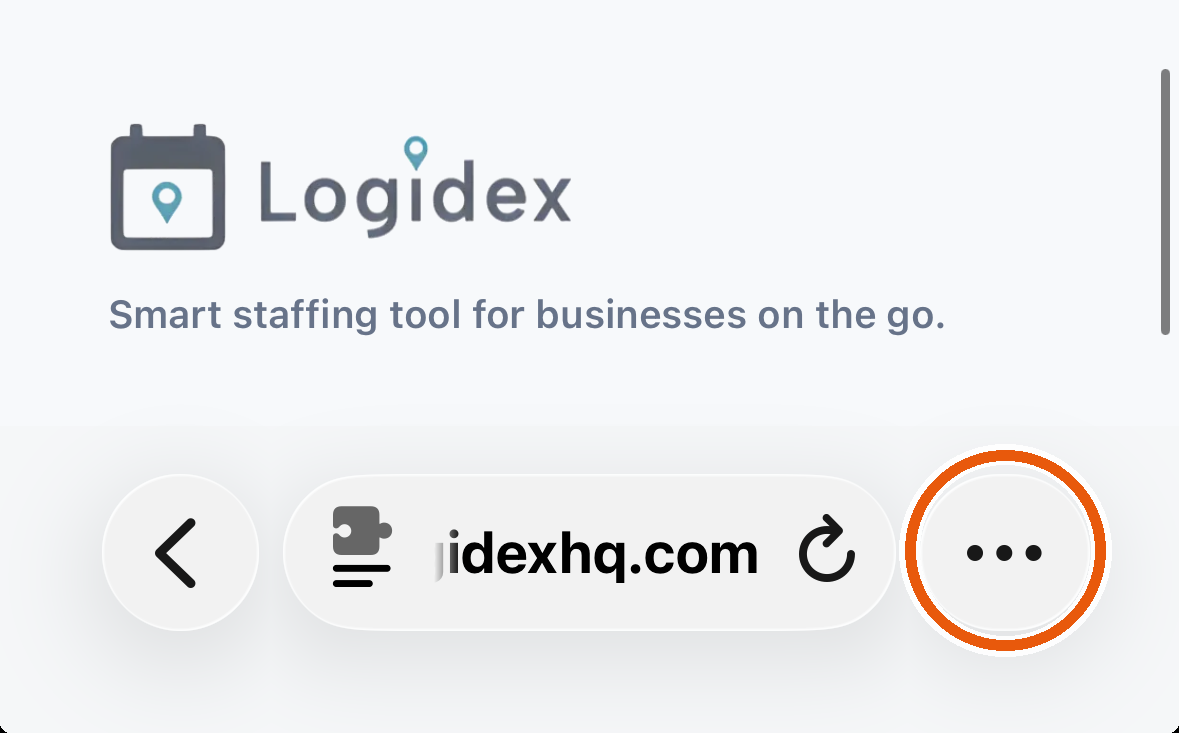
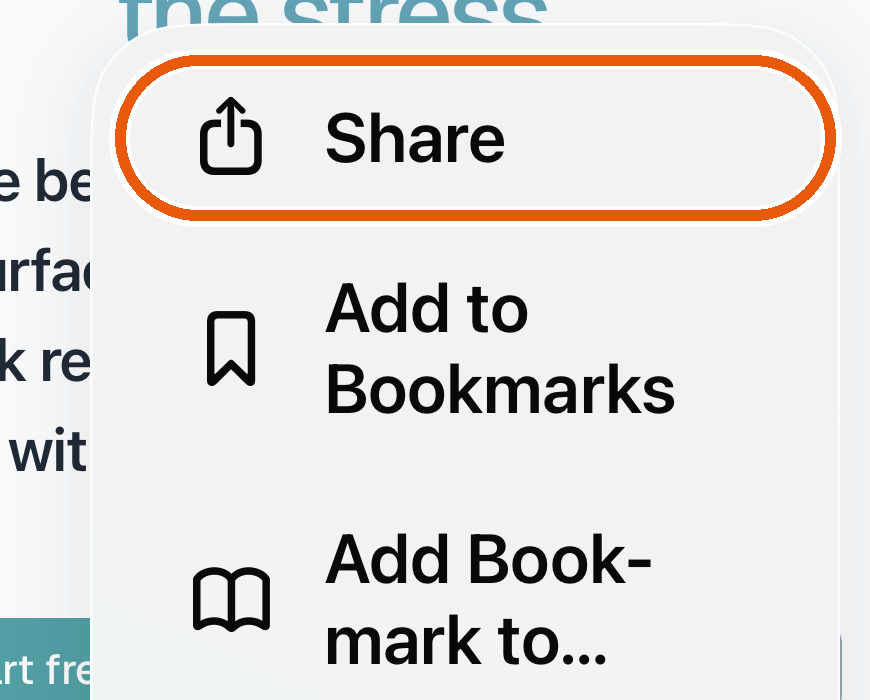
Tap it, and Share is the first item in the menu that opens.
In Chrome
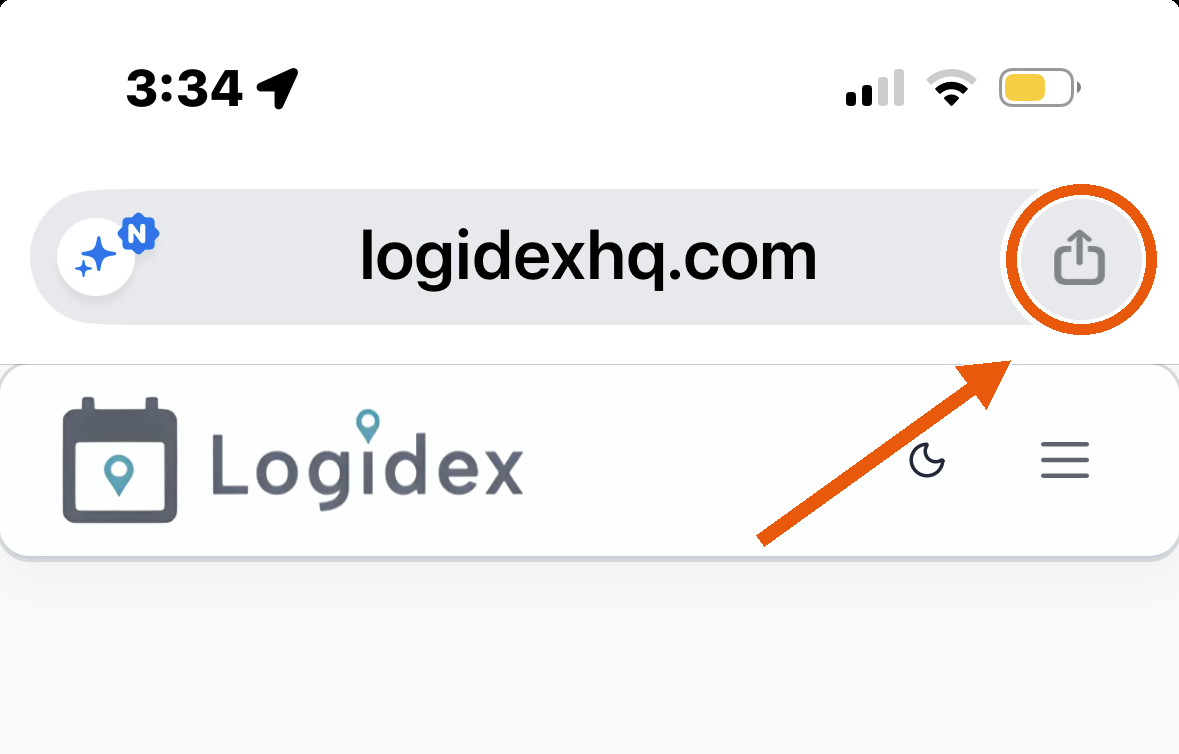
The Share icon is on screen already — at the top, on the right-hand end of the address bar. There is no menu to open first.
Step 2: Add to Home Screen
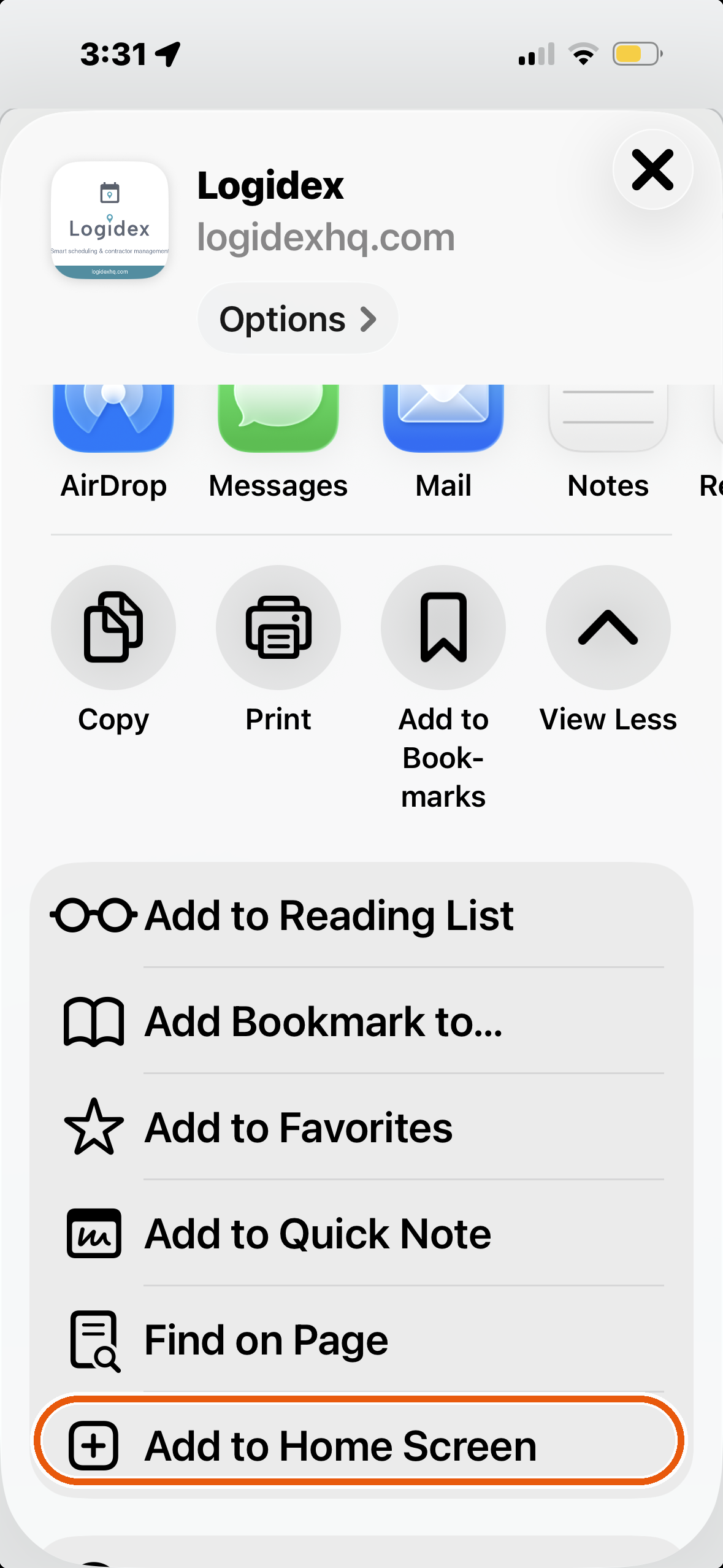
From here both browsers are the same. The Share panel slides up. Scroll down the list of options and tap Add to Home Screen, then tap Add in the top right.
Then what
A Logidex icon appears with your other apps. Opening it goes straight in, without the browser bars, and stays signed in.
If something looks out of date
Because it keeps a copy on your phone, an installed app can occasionally show you an older version of a page. Close it completely — swipe it away rather than just going back to your home screen — then open it again. See why does my page show old information?.
Last updated