

Finding your way around your portal
A tour of the one page you use: the six tabs, the setup bar, where your bookings are, and what the blue dots mean.
Your portal is a single page called My Profile. Everything you can do lives on it. This is a walk around that page so nothing is a surprise.

The setup bar
When you first sign in there is a thin bar near the top with a number beside it, like 2 / 4. That is how many of the core sections you have filled in.
It disappears on its own once all four are done. It is not a deadline, it is just a reminder of what is left.

The six tabs
- Profile — your name, how to reach you, and anything extra your agency asks for
- Skills — the services you offer
- Schedule — your usual week, your calendar, and your upcoming bookings
- Travel — where you are willing to work
- Assets — your photo, your online presence, and any documents your agency needs
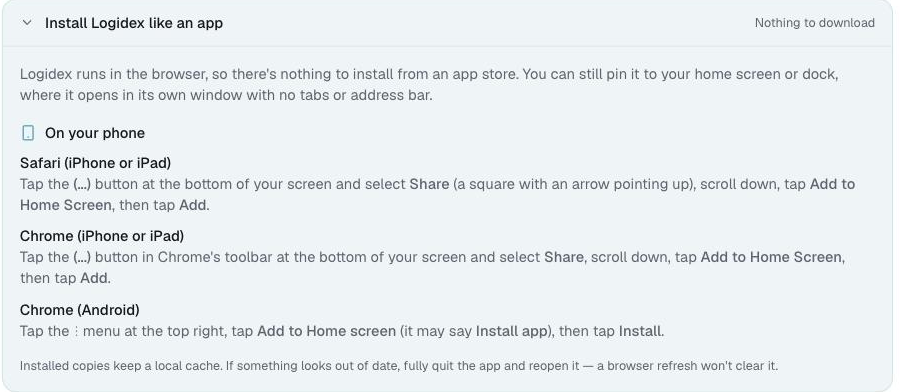
- Account — change your password, and put the app on your phone

⭐ A blue dot on a tab means there is a tip inside. Usually it is pointing at something still empty. Once that section is filled in, most of the dots go away. Travel and Schedule keep theirs on purpose, because they are worth revisiting.
The things that sit outside the tabs
Three parts of the page are not inside any tab, so you see them wherever you are.
Coverage needed, at the very top, appears only when a teammate has asked for help with a shift. It is the one place in the portal with a yes and a no button.
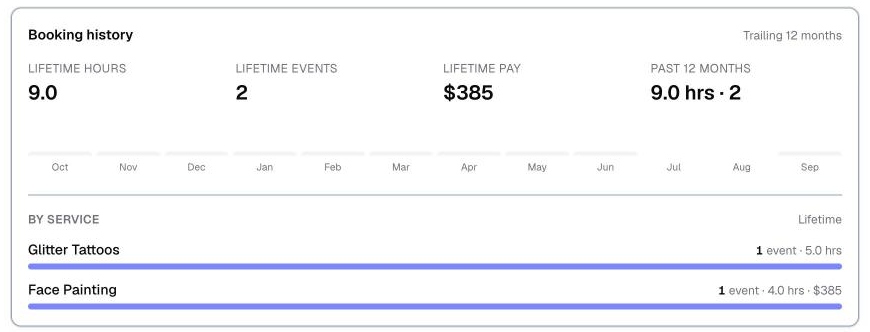
Booking history, at the bottom, shows your lifetime totals and a bar for each of the last twelve months.
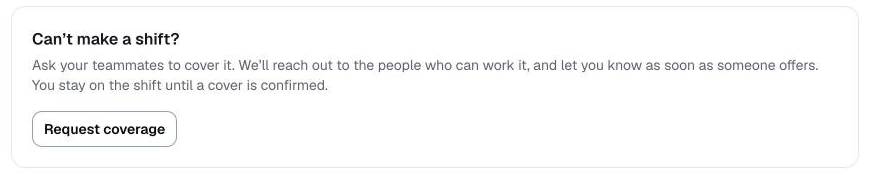
Request coverage, also at the bottom, is how you ask for help with one of your own shifts. It is only there if your agency has turned it on. There is a separate article on how that works.
If you work for more than one agency
A switcher appears at the top of the page. Pick an agency and the whole portal reloads as that agency sees it, including their services and their wording.

⚠️ Your availability is the one thing both agencies share. Everything else stays private to each. There is more on this.
Putting it on your phone
Open the Account tab. The instructions for adding Logidex to your home screen are at the top, written for the phone you are holding.
If your portal says it is paused
That is about your agency's plan, not about you and not about anything you did. Nothing of yours is deleted. Tell whoever runs your agency and it comes straight back.
Last updated