

Changing your password
How to change it, what happens to your other devices, and why you stay signed in on the one you are using.
You can change your password whenever you like, and you do not need to be signed out to do it.
How
- Click your name at the very bottom of the left-hand menu.
- Choose Settings.
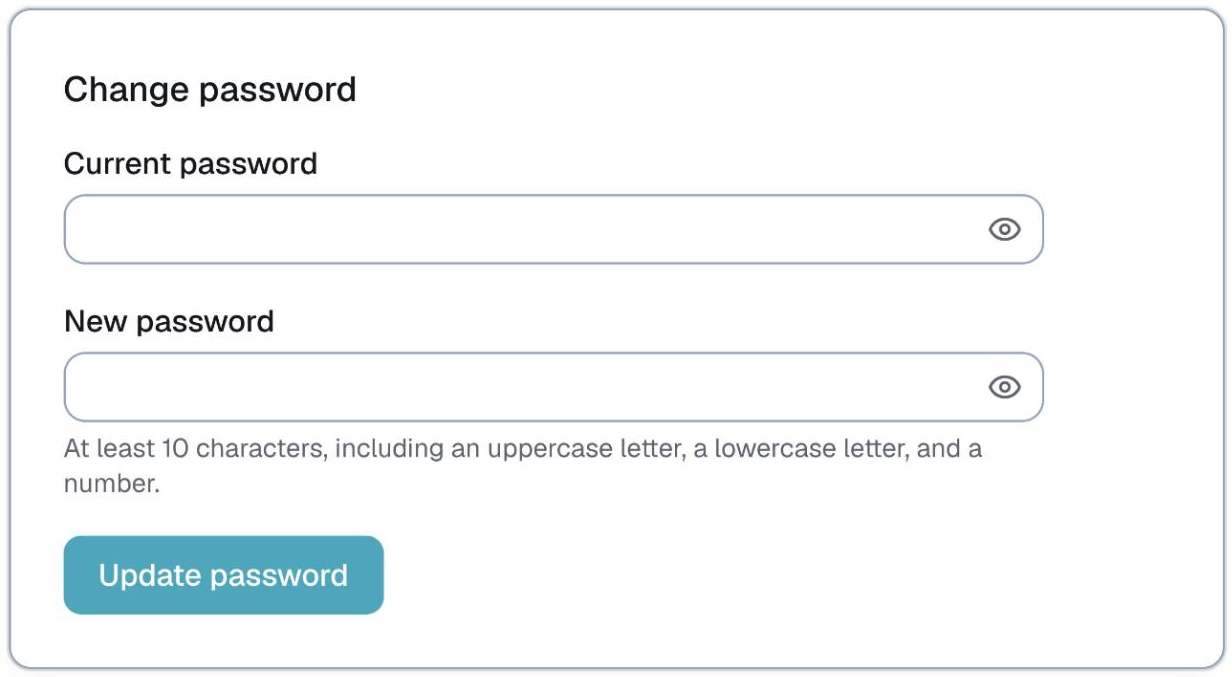
- Find the password section and enter your current password, then the new one twice.
- Save.
What happens to your other devices
Changing your password signs out every other device — your phone, a second browser, a computer you used once at a client's office. That is deliberate. It is the whole point of changing a password you think somebody else might know.
You stay signed in on the device you are using. You will not be thrown back to the login page, and you do not need to sign in again with the new password.
If you cannot remember your current password
You cannot change it from Settings without it. Use Forgot password on the sign-in page instead.
If the reset email does not arrive, the usual reason is that the address you typed has never had an account — see I didn't get my password reset email.
For staff
Anyone on your team can do the same thing from their own portal, under Account. They do not need to ask you, and you never see their password.
If somebody is properly stuck, you can open their profile in your roster and press Resend invite / reset password. That gives you a fresh temporary password to hand them directly, and it does not depend on any email arriving.
Last updated