

Connecting your outside form, and matching its questions
Keep the booking form you already have in Wix, Squarespace, JotForm or Typeform, and have its answers land on your bookings. The four steps, and what the matching screen is really asking you.
Already built your form somewhere else? You do not have to rebuild it. Connect it, leave it exactly as it is, and its answers land on your bookings.
Logidex calls that an outside form, to keep it apart from the Logidex form that Logidex hosts for you. You can run both at once.
Where it lives
Settings → Booking intake.
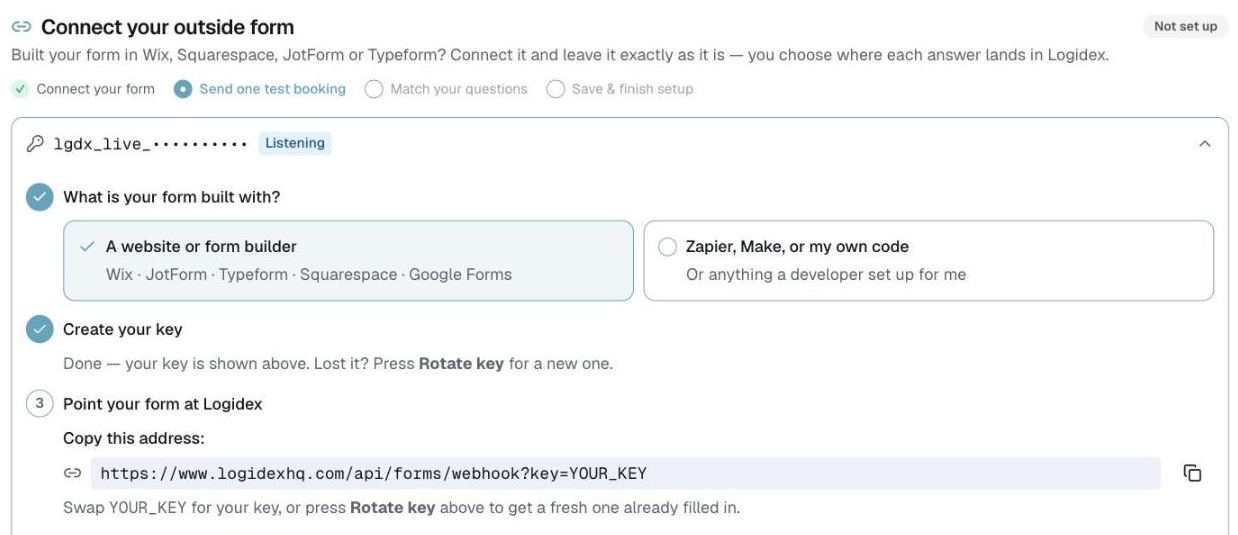
Near the top is a strip of four steps. It is the map for this whole job:
- Connect your form
- Send one test booking
- Match your questions
- Save & finish setup

⭐ The order matters and it is not the obvious one. You send a real test booking before you decide where anything goes, because Logidex can only offer you questions it has actually seen arrive.
⚠️ Only the account owner can do this. An admin sees the page read-only.
Step 1 — Connect your form
- Tell Logidex which tool your form is built in. The instructions that follow are written for that tool specifically.

- Copy the address Logidex gives you, using the Copy button beside it.

- Copy your key.
⛔ Your key is shown once and cannot be shown again. Copy it now and paste it somewhere before you move on. If you lose it, press Rotate key for a fresh one — your question matching is kept, and the only thing left to do is paste the new address into your form again.

- Follow the on-screen instructions for your tool to paste both into your form's settings.
Step 2 — Send one test booking
Go to your own form, as a client would see it, and fill it in.
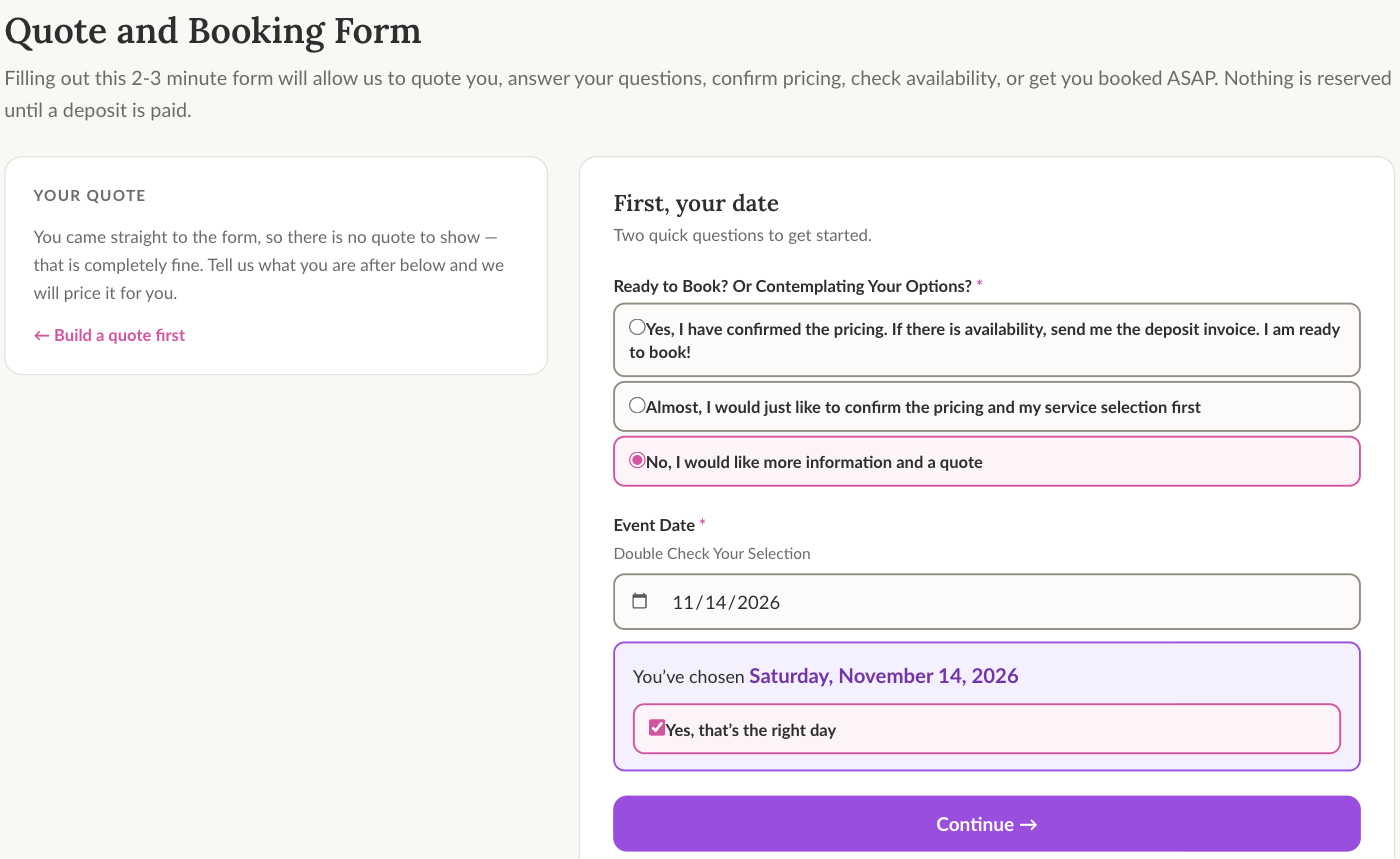
⛔ Fill in every box, even the optional ones. This is the single most common thing to get wrong. A question you leave blank never arrives, so Logidex has no way to show it to you, and you will not be able to choose where it goes. A skipped optional question at this stage becomes a question that lands nowhere for months.
Step 3 — Match your questions
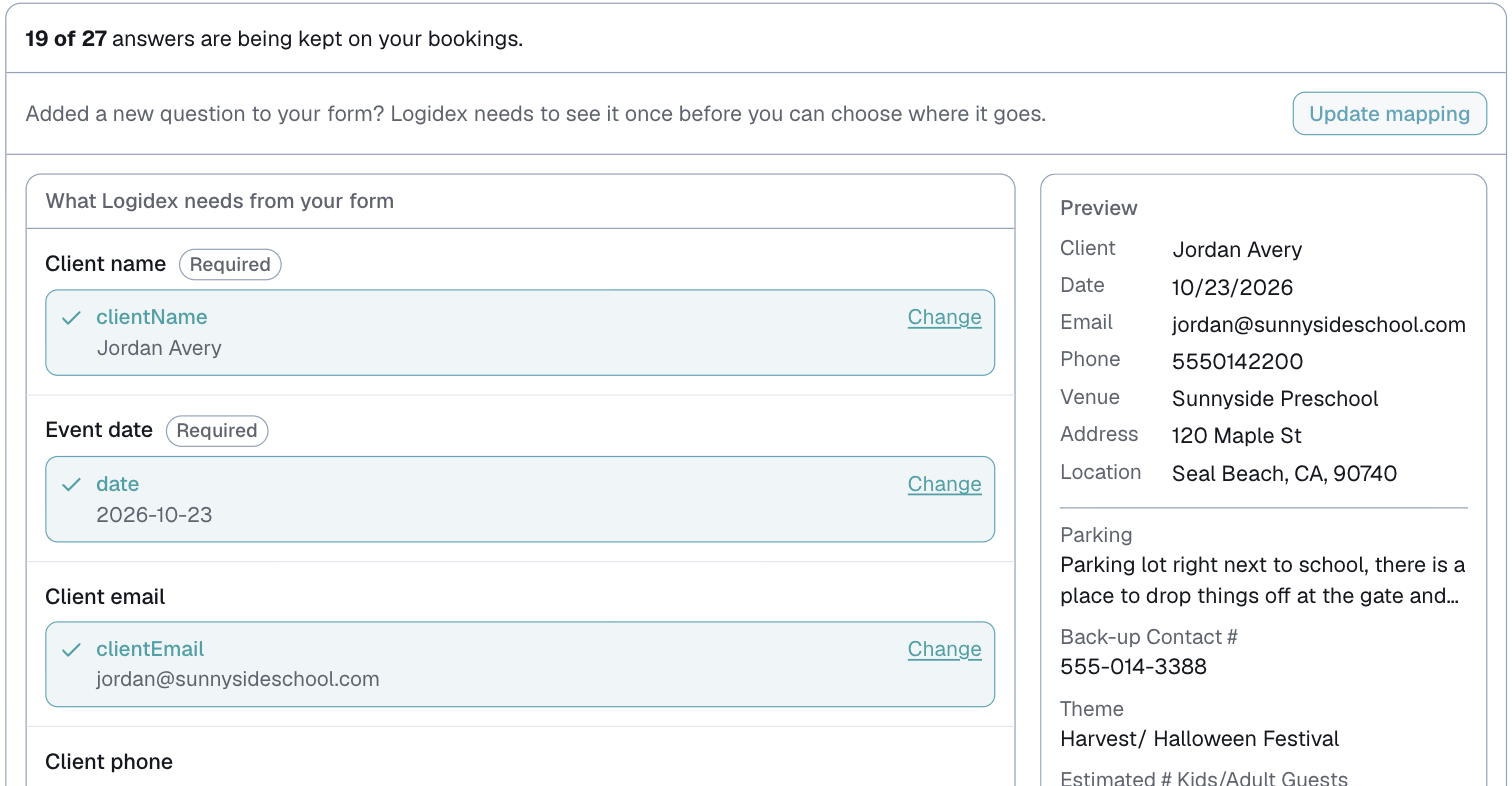
Your test booking arrives and is held, rather than becoming a real inquiry. The screen now lists your form's questions on one side and where each answer can go on the other.
The five that matter
Five core things need a question pointed at them, such as who the client is and when the job is. Each has its own row.
- Where Logidex has guessed, the row is filled in with a check beside it, and a small Change link to pick a different question.
- Where it has not, the row says Choose a question…
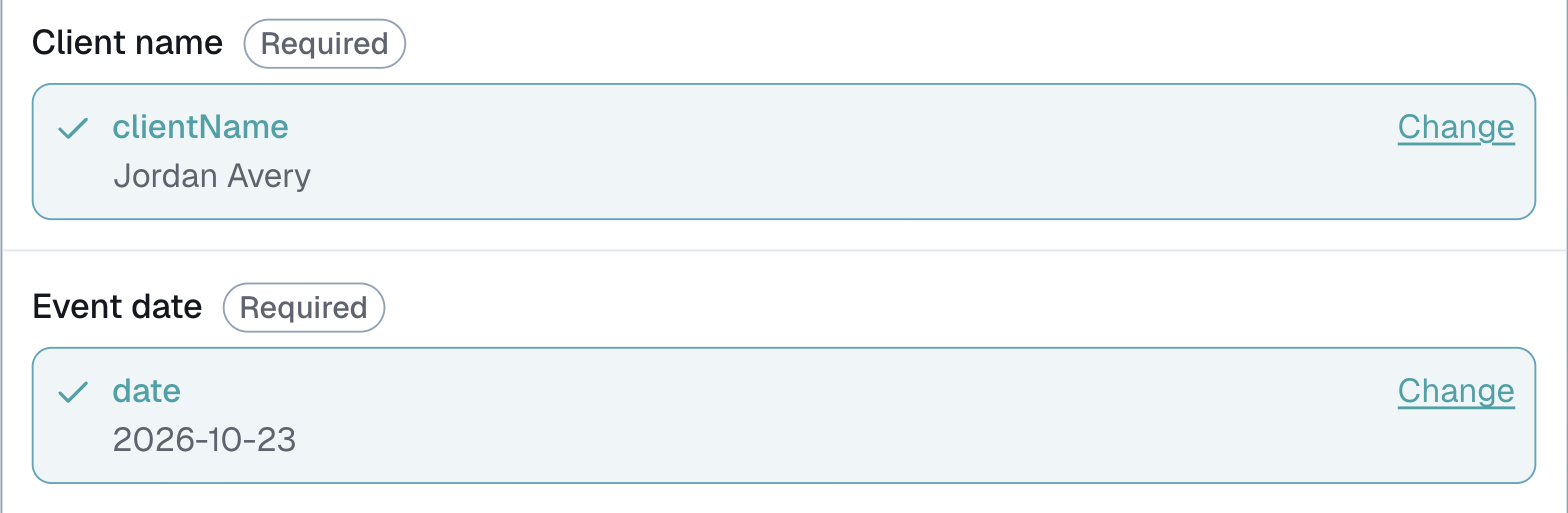
⚠️ Anything Logidex filled in by reading your test booking is a guess, and it is not saved yet. Read each one before you save. The screen tells you how many it guessed.
Everything else is optional, and that is normal
Above the rows there is a line reading something like 14 of 19 answers are being kept on your bookings.
That is not a warning and there is nothing to fix. An answer you do not choose is simply not kept. Most forms ask things you do not need on the booking.

At the bottom of the section there is a list you can open showing every question that is not being kept, by name. It is worth reading once, because it is the only place that would ever tell you about a question you added to your form months ago whose answers have been going nowhere ever since.
Keeping an extra answer
To keep something that has no home yet, press Keep beside it. Logidex asks you to name it, with a suggestion already filled in, and then makes that field on your Event Card for you.
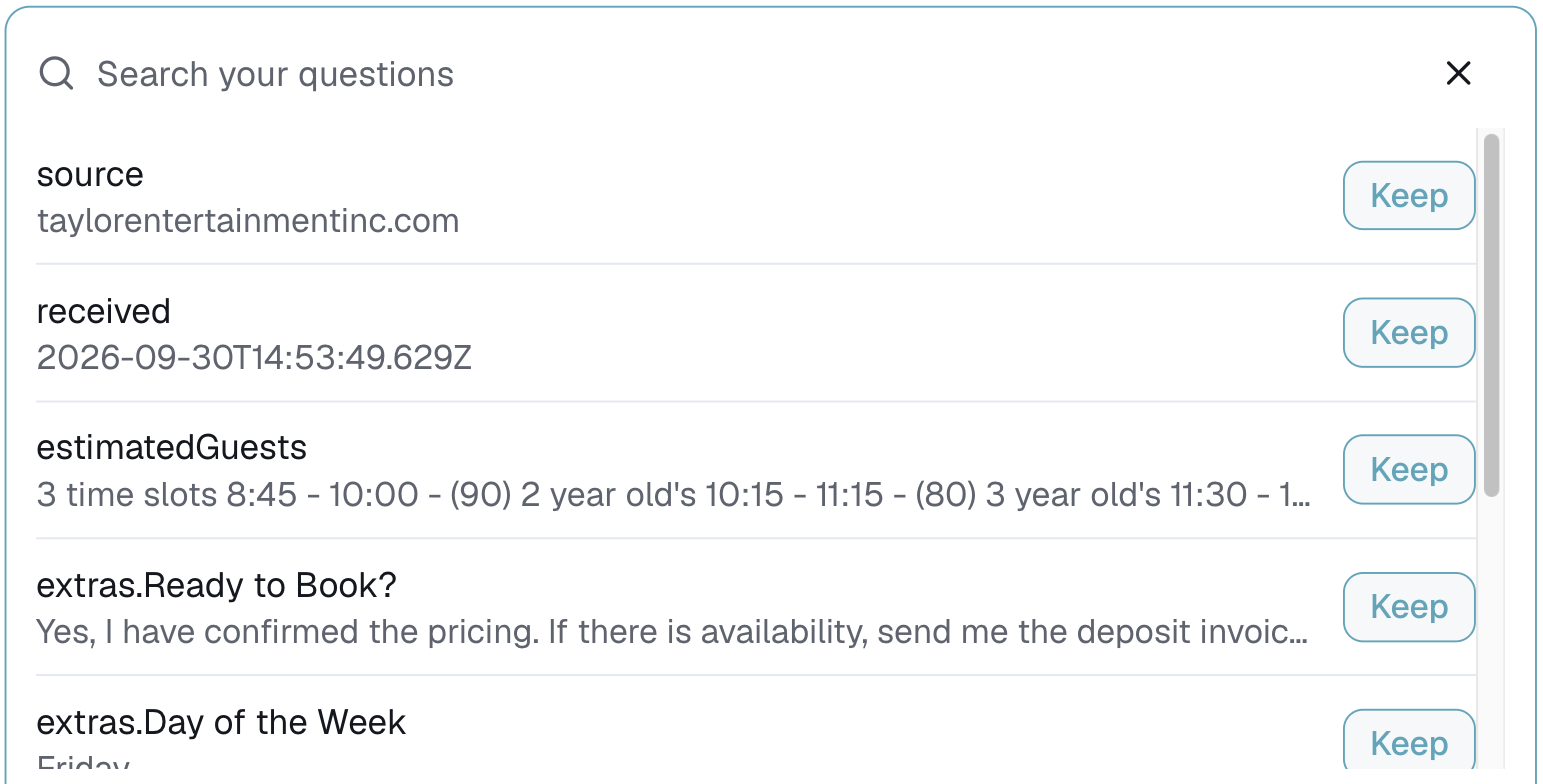
You do not have to leave this screen to do it.
⚠️ If you create the field yourself on the Event Card instead, make it Text or Long text, never a checkbox. Everything arriving from a form arrives as words, and a checkbox reads the word "No" as a tick.
How dates arrive
There is a setting for how your form writes dates, so a form sending 09/15/2026 and one sending 15/09/2026 are both read correctly.

It belongs to this connection and has nothing to do with how dates are shown to you elsewhere in Logidex.
Step 4 — Save & finish setup
Press Save & finish setup. Your test booking, and anything else that arrived while you were working, is released into your inquiries with the matching applied.

Changing it later
The connection panel shows its status and a line reading Last received a booking, with when.

To change what goes where, press Update mapping. That puts the connection back into listening, and it waits for a new test booking before showing you anything.
⭐ If you cannot send a test right now, you are not stuck. Press Put it back live. Your saved matching is kept exactly as it is, and bookings go straight to your inquiries again. This is the way out when the form belongs to someone else and you cannot reach them.
If bookings stop arriving
There is a separate article for that, because the first place to look is not the one most people try.
Last updated