

Connecting Google Calendar
How to connect it, why there is only one calendar for the whole business, what an admin will and will not see, and what to do when the connection expires.
Connect Google Calendar and each shift can go out as a real invite, so your team sees their work where they already look. This article is about getting connected. Sending shifts once you are is a separate one.
One calendar for the whole business
Worth knowing before you start, because it explains almost everything else on this screen.
Logidex connects to one Google account per business. The owner connects it, and every push, by every admin, runs on that one account and lands on that one calendar.
⭐ That is deliberate. It means your team gets one invite from one place, rather than three different admins each creating their own version of the same booking on their own calendar.
Connecting it
- Go to Settings → Google Calendar.
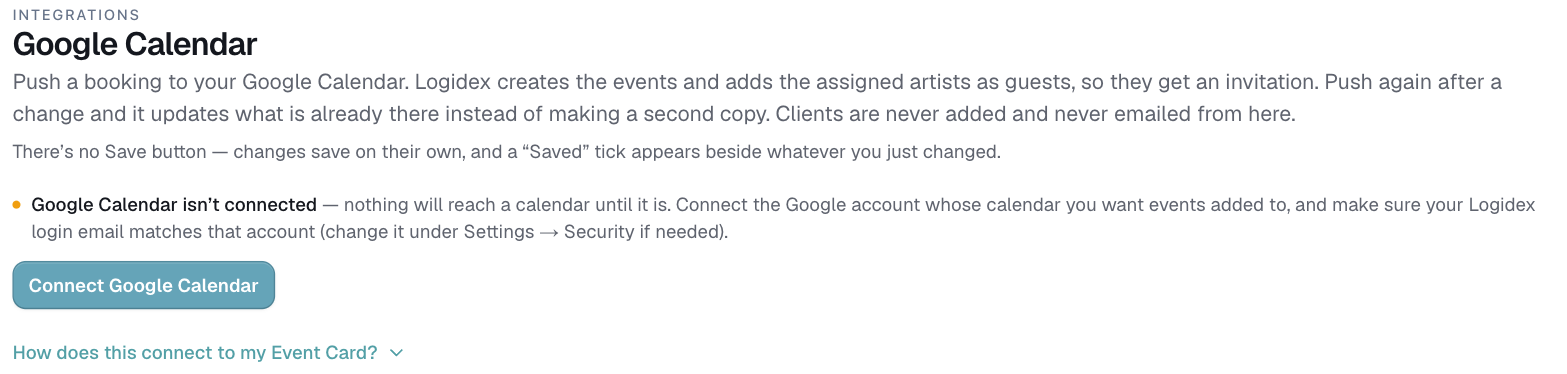
- Check the line at the top. If it reads Google Calendar isn't connected with an amber dot, you are in the right place.
- Decide which Google account your bookings should land on. It does not have to be the one you sign in to Logidex with. Your login and your calendar account are kept separate, so changing one never moves the other.
- Click Connect Google Calendar.

- Google asks you to sign in and to approve access. Approve it, and you land back on this page.
- The line at the top now reads Google Calendar connected, with a green dot and the name of the calendar it will push to. Above it, You sign in as shows your Logidex login and Calendar account shows the Google account your invites go to.
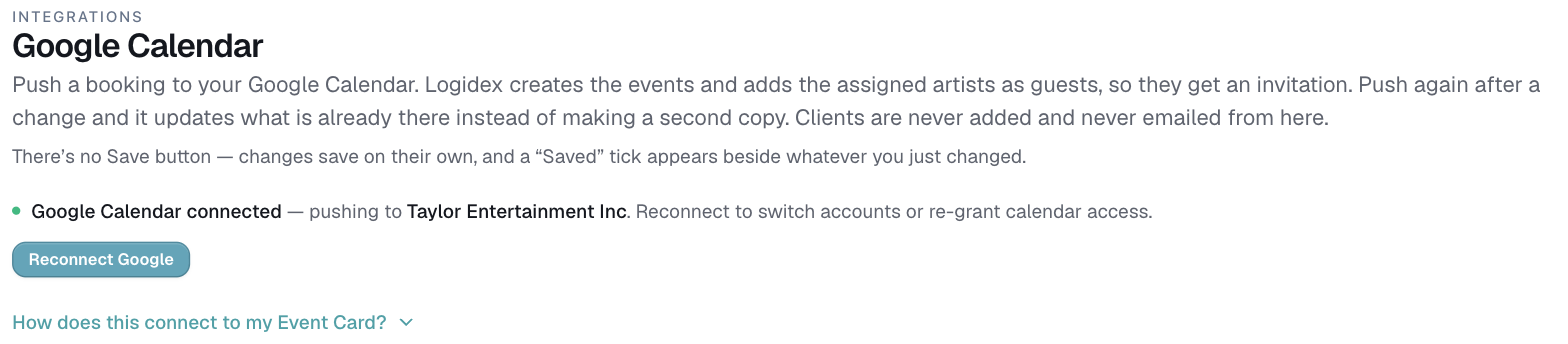
- Under Which calendar, pick the calendar you want bookings to land on. If you keep a separate work calendar, choose it here rather than your personal one.

What an admin sees
An admin who is not the owner opens the same page and sees it connected, through the owner's account, with no Connect button.
That is not a permission problem and nothing is broken. A Connect button there would link that admin's own Google account, which nothing would ever use, so it is not offered.
When the connection expires
Google permissions do not last forever. When one lapses, the page says Your Google Calendar connection has expired.
Two things are true and both are worth knowing:
- The invites already in Google are untouched. Nothing has been deleted and nobody has been removed from anything.
- Nothing new can go out until it is renewed, and Logidex cannot read or update the existing invites either.
The fix is one button. Press Reconnect Google, approve it at Google, and you are back. It takes a few seconds and nothing on your calendar changes.
⚠️ Only the owner can do it. If you are an admin and you see this message, the person to ask is named on the screen. Until they press it, nobody can push.
Switching to a different Google account
This is not available yet. Reconnect Google renews the connection for the same Google account, and that is all it does. If you pick a different Google account there, Logidex stops, says so, and changes nothing. That keeps every invite already on your calendar linked to its booking.
If you want bookings on a different calendar, the easy route is to share that calendar with the account you already connected, with Make changes to events access. It then shows up under Which calendar.
Last updated