

Setting your availability
Your usual week, your monthly calendar, and how to set the hours you can work. This is what decides which shifts you get offered.
This is the most important thing in your portal. Everything you are offered comes from it.
Your usual week
Set which days you can normally work, then tap Save Availability. Most people fill this in once and barely touch it again.
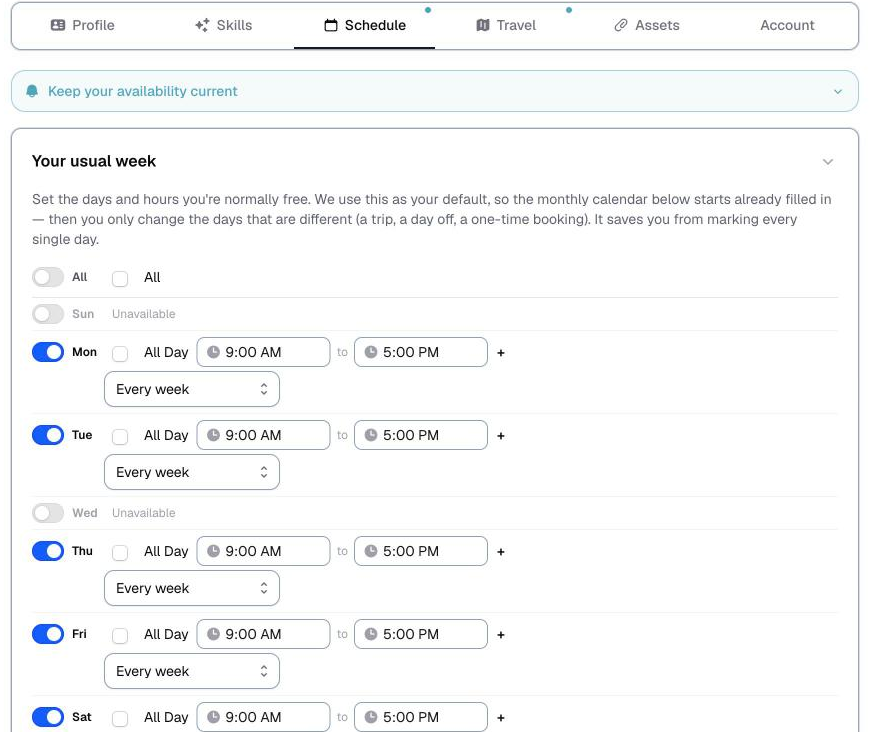
Not every week? Under any day you work, choose Every other week, Every 3rd week or Every 4th week, then pick the first date of the pattern. The weeks in between stay off.
Your monthly calendar
For the exceptions: a specific day off, a weekend you are away, a Tuesday you can suddenly work.
Faded days follow your usual week. Bright days were set by hand. The key under the calendar shows what each color means.
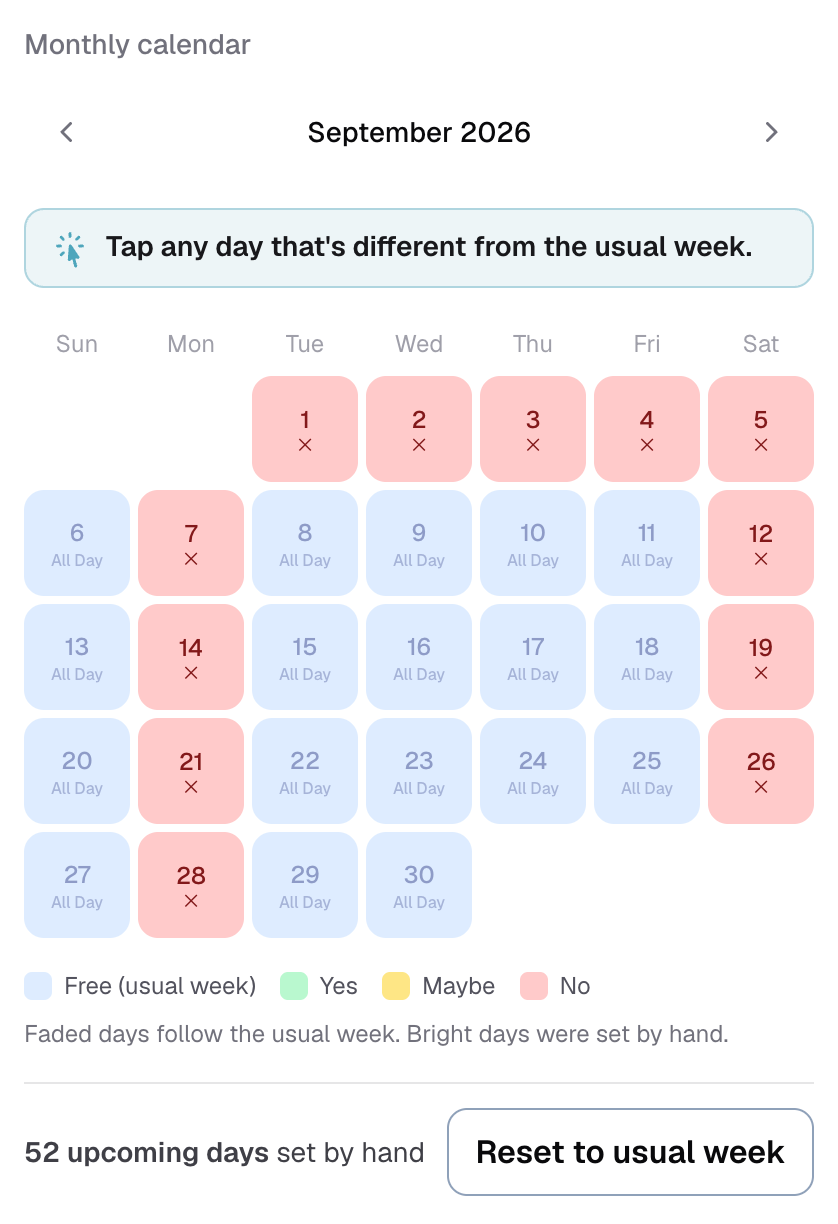
Tap any day and answer Can you work this day?
- Yes (Confirmed): you want to work this day if nothing else comes up in the meantime
- Maybe (Ask): you are not sure, but don't hesitate to ask
- No (Not available): the whole day is off
Maybe is genuinely useful. It is not a soft no. You will still be offered the shift, just after the people who are definitely free, and your ranking still applies within it.
Blue days come only from your usual week. To be usually free on a day, set it there.
Setting the hours you can work
After tapping Yes or Maybe:
- Tap + Add hours and set the start and end time.
- Free at two different times? Tap + Add another time slot.
- Read the Here's how it reads box. It says in plain words exactly what will be saved.
- Tap Save this day.
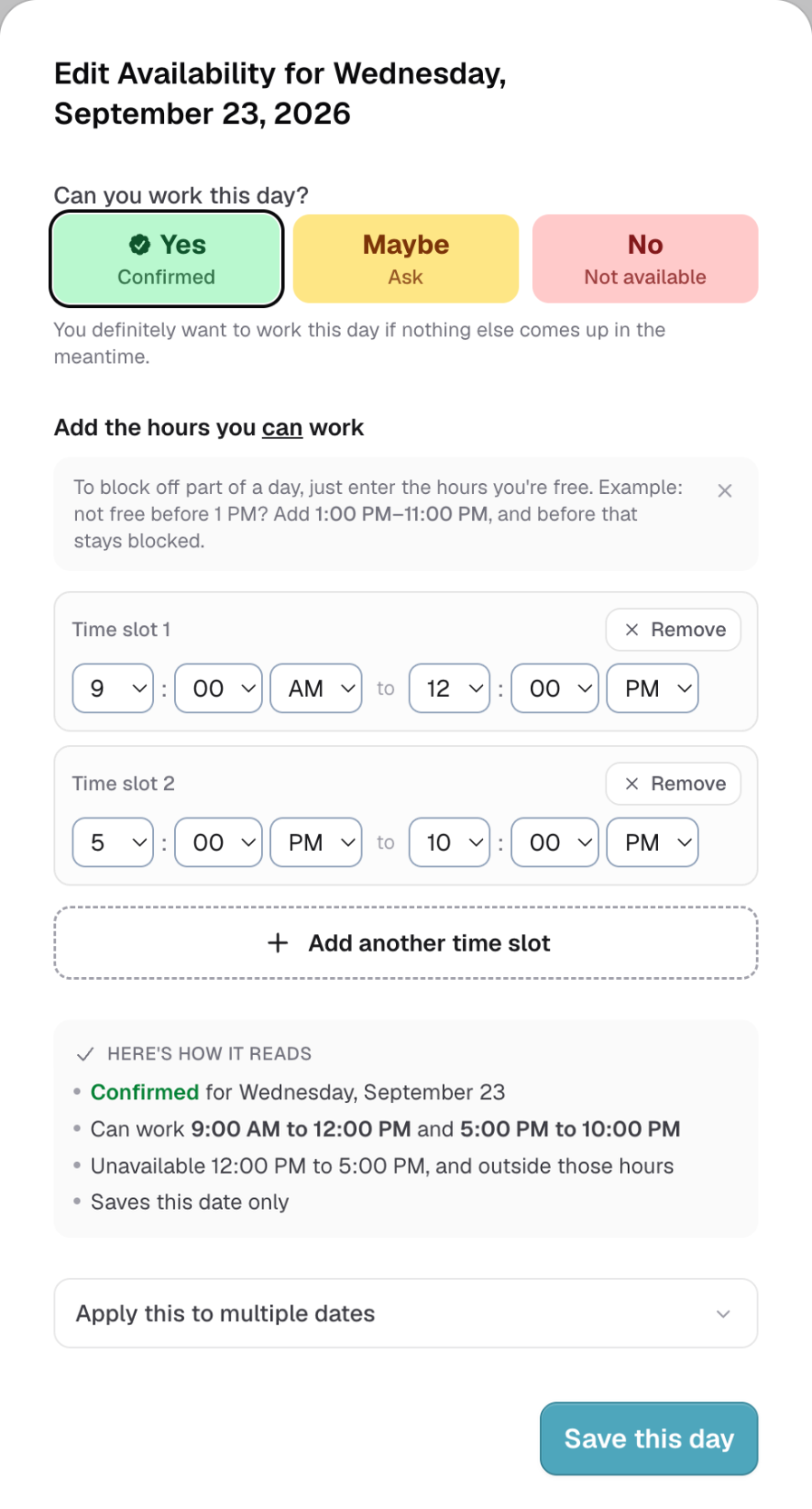
⚠️ Anything outside those hours counts as unavailable. If you set 6:00 PM–1:00 PM, you will not be offered a 3pm shift that day. Not free before 1 PM? Add 1:00 PM–11:00 PM, and before that stays blocked.
No hours means free all day.
No never has hours, because it means the whole day is off. Only free for part of the day? Choose Yes or Maybe instead and enter the hours you can work.
Setting several days at once
Open a day, pick your answer, then tap Apply this to multiple dates. The day and month in these options follow the day you opened.
- Pick the dates myself: tap the days on the calendar, then tap Apply. Best for a week away.
- Every Saturday in September: those days, this month only.
- Every Saturday from now on: changes your usual week, not just the calendar. With Yes the day is added to your usual week. With No it comes off your usual week. Not offered for Maybe.
- Every other Saturday: with Yes, it goes in your usual week as an every-other-week day. With Maybe or No, it covers the next three months.
Going back to your usual week
A day you set by hand keeps its setting, even if you change your usual week later.
- One day: open it and tap Follow the usual week.
- All of them: under the calendar, tap Reset to usual week, then Clear all. Only upcoming days are cleared, and days held by a booking stay put.
What happens automatically
A confirmed booking blocks you out. You do not have to mark yourself busy for work you have already been given. Logidex does it, including work from a different agency.
⭐ Your availability is shared between agencies. If you work for two, marking a Saturday off tells both. They see that you are unavailable, never who you are working for or where.
If your agency has to approve changes
Some agencies switch on approval for time off. If yours has, choosing No sends a request instead of changing the day, and the button reads Request time off. The day shows an amber outline with an hourglass until they answer, and you will see their reply in your portal.
Last updated